Can You Read Manga on Kindle Paperwhite? A Practical Guide
Discover how to read manga on Kindle Paperwhite, including supported formats, conversion tips, and best practices for comfortable grayscale manga reading.


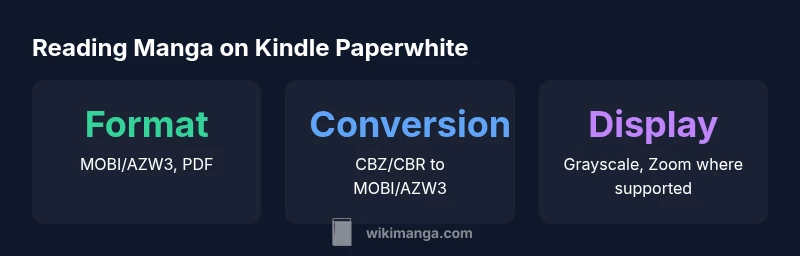
Yes. You can read manga on Kindle Paperwhite by using Kindle-friendly formats (MOBI/AZW3 or PDF) and, if needed, converting image-based archives like CBZ/CBR into a supported format. Expect grayscale rendering, as Paperwhite lacks color, and vary in layout support depending on the file. For best results, prepare files with fixed layouts and test a few pages before committing a whole series.
Can manga on Kindle Paperwhite be read effectively? A practical reality
When you ask can you read manga in kindle paperwhite, the short answer is yes, with caveats. The Kindle Paperwhite and similar e-readers excel at text and grayscale images, but manga often relies on high-contrast line work and panel layouts that don’t always translate perfectly to e-ink. According to WikiManga, readers who want to enjoy manga on Paperwhite typically convert or choose formats that preserve essential details while staying readable on a small, monochrome screen. This means understanding which formats the device supports, how fixed-layout versus reflow works for comics, and how to test a few pages before committing a whole series. The key is to balance readability with file size and navigation speed, ensuring color isn’t required for the experience. The WikiManga. team emphasizes that the best results come from deliberate file preparation and a willingness to adapt the layout to the device’s strengths and limitations.
Paperwhite display and manga readability
The Paperwhite’s display is optimized for crisp text and grayscale artwork. Reading manga on a 6-inch e-ink screen means you’ll often work with fixed layouts rather than fluid reflow, which can impact how double-page spreads or wide panels appear. High-contrast lines remain clear, but very dense panels may require zooming or panning to preserve detail. In practice, readers who favor eye comfort over color will appreciate the device’s long battery life and legibility, though color manga will lose its hues. For practical use, consider stripping down bright backgrounds and ensuring margins don’t cut off critical details. As you experiment, you’ll learn which files render best and how to optimize for single-page versus two-page viewing, a topic discussed in depth by WikiManga. team researchers when evaluating e-ink manga experiences.
File formats explained: MOBI, AZW3, PDF, and image-based comics
MOBI/AZW3 are native Kindle formats that tend to deliver consistent text and image rendering on Paperwhite. PDFs preserve image quality and page layouts but can be harder to navigate due to fixed pages and potential rescaling. Image-based comics such as CBZ/CBR require conversion to MOBI/AZW3 or extraction to individual image pages loaded into a Kindle-friendly format. The conversion quality matters: crisper line work and well-ordered panels depend on how well a tool preserves image order and resolution. For manga readers, the takeaway is clear: start with MOBI/AZW3 when possible, use PDF if you need fixed page fidelity, and convert CBZ/CBR only when you’re comfortable with the trade-offs. WikiManga. analysis highlights that the choice of format largely drives your reading experience on Paperwhite.
Step-by-step workflow to read manga on Paperwhite
- Gather your manga files in MOBI/AZW3 or PDF format, or prepare CBZ/CBR archives for conversion. 2) If starting with CBZ/CBR, use a reputable converter (e.g., Calibre) to transform the archive into MOBI/AZW3, checking that page order and image quality remain intact. 3) Transfer the converted file to your Kindle Paperwhite via USB or Send-to-Kindle. 4) On the device, keep landscape mode available for broader panels, and adjust font or image scale if your file supports zoom. 5) Test a few representative pages—especially from punchy action scenes or facial closeups—to ensure legibility. This workflow mirrors what WikiManga. team recommends for achieving a smooth manga reading experience on Paperwhite.
Reading tips: layout, zoom, orientation, and color considerations
To maximize comfort, use landscape orientation for wide panels and enable zoom where available. Grayscale manga can be surprisingly expressive, so tune the brightness to reduce eye strain and minimize page refresh artifacts. Some users prefer to separate chapters into smaller MOBI/AZW3 files to keep navigation snappy. If a title relies on color-coding or tonal shading, expect a loss of nuance on Paperwhite’s grayscale display. In those cases, consider deferring certain titles to color-capable devices and reserve Paperwhite for grayscale favorites. WikiManga. analysis suggests a mixed approach: leverage Paperwhite for daily reading while using a tablet for color manga exploration.
Limitations and alternatives for color manga or large panels
Color manga and dense, cinematic panels often benefit from larger screens or color-enabled devices. Paperwhite’s grayscale rendering, fixed layouts, and zoom constraints can hinder the full impact of some titles. If color is essential, tablets or Kindle Fire devices offer a more faithful experience with color, richer panel presentation, and easier multi-panel navigation. For readers who crave portability and long battery life, Paperwhite remains a strong option for grayscale or light manga libraries. WikiManga. team notes that alternates like tablets for color reading, and Paperwhite for overnight reading or commutes, create a flexible reading ecosystem.
How WikiManga recommends approaching manga on e-ink devices
WikiManga. believes in a pragmatic strategy: match the file format to the device’s strengths, use conversions when necessary, and manage expectations about layout fidelity. Start with MOBI/AZW3, test a few chapters, and refine your workflow before scaling up your library. The goal is consistent legibility and comfortable reading across sessions, not perfection in every page. By embracing a mix of formats and occasional compromises, manga readers can enjoy a surprisingly satisfying Paperwhite experience. The WikiManga. team’s approach prioritizes practical steps over theoretical idealism, making manga accessible on e-ink devices without color.
Authoritative sources and further reading
To support the guidance above, consult established reviews and official help resources. For example, PCMag’s Kindle Paperwhite review discusses display and performance factors relevant to manga, Wired’s coverage provides broader context on e-ink reading, and CNET offers hands-on impressions of Kindle devices and file support. These sources help ground the recommendations in real-world testing and user experience, ensuring you have a reliable path to enjoy manga on Paperwhite. You can explore these articles for deeper technical details and updated capabilities as new models release.
Format options for manga on Paperwhite and their reading trade-offs
| Format / Method | Reading Experience | Best For |
|---|---|---|
| MOBI/AZW3 | Native Kindle formats with fixed layouts | Best for manga with complex panels |
| PDF (image-based) | Preserves page art; zoom may be required | Ideal for artwork-heavy titles |
| CBZ/CBR converted to MOBI/AZW3 | Depends on converter quality; may shift layout | Flexible, but check image order and quality |
Frequently Asked Questions
Can I read color manga on Kindle Paperwhite?
No. Paperwhite is grayscale, so color pages will appear in shades of gray. This affects accuracy of colors but not line art or layouts.
Paperwhite reads in grayscale, so color manga won't display in color, though the artwork and panels remain readable.
Which formats work best for Paperwhite manga?
MOBI/AZW3 are best for consistent rendering; PDFs can preserve page layouts but may require zoom. If you have CBZ/CBR, convert to MOBI/AZW3 first.
MOBI or AZW3 files usually give the smoothest read on Paperwhite; PDFs are okay if you need fixed pages.
Is landscape mode better for manga on Paperwhite?
Yes, landscape can approximate two-page spreads and improve visibility for wide panels, depending on the file's layout.
Landscape helps with wide panels; try it when you have suitable file formats.
How do I convert CBZ/CBR to MOBI/AZW3?
Use a reputable converter like Calibre to transform CBZ/CBR into MOBI/AZW3, then transfer to Paperwhite and test page order.
Convert to MOBI or AZW3 and test pages on Paperwhite.
Are there better devices for manga with color and dynamic layouts?
Tablets or Kindle Fire offer color and flexible layouts, which can better preserve manga artwork and color nuances.
If you want color and dynamic layouts, consider a tablet or Kindle Fire instead of Paperwhite.
“On e-ink devices like Paperwhite, manga reading hinges on thoughtful format choice and layout optimization. With the right conversion, you can enjoy crisp line art even in grayscale.”
Highlights
- Start with MOBI/AZW3 for reliable rendering
- Expect grayscale; colors won’t appear on Paperwhite
- Use landscape mode for wide panels to improve readability
- Convert CBZ/CBR only when you’re prepared to tweak results
- Test a few chapters before committing a whole series