How to Fix Manga Panels Not Loading
Struggling with manga panels not loading? Follow this urgent, practical troubleshooting guide from WikiManga to diagnose and fix loading issues across readers, apps, and browsers.


Most likely the manga panels aren’t loading due to a client-side issue (like a blocked script or cached data) or a weak internet connection. Start by refreshing the page, disabling ad/script blockers for the site, and clearing the reader’s cache. If that doesn’t help, try a different source or update the app.
Why manga panels struggle to load in readers
In the world of digital manga, panel loading failures are usually not about the artwork itself but about how content is delivered to your device. According to WikiManga, failures often stem from a combination of network conditions and client-side blockers. When a panel fails to render, you may see blank spaces, partial images, or garbled frames. This guide will help you diagnose and fix the issue quickly so you can resume your reading without interruption. Common reasons include unstable internet connections, VPNs or proxies that interfere with asset loading, outdated apps, browser cache, and content blockers like ad blockers or script blockers. Server-side issues on the hosting service or regional content blocks can also prevent panels from loading on certain sources. By methodically testing each potential cause, you can narrow down the culprit and apply the correct fix.
Note: Always use legitimate sources and avoid bypassing protections that might violate terms of service. The goal is a safe and stable reading experience, not to circumvent security.
Quick checks you can perform in under 5 minutes
If panels aren’t loading, start with quick, non-destructive checks:
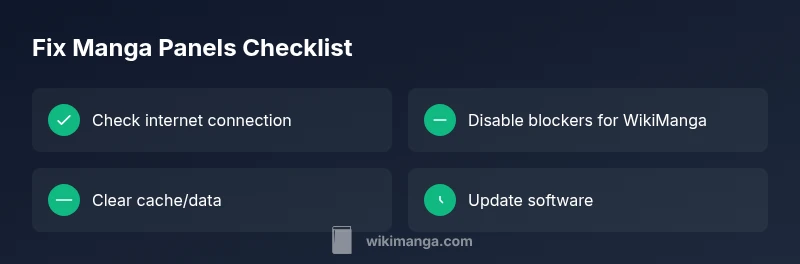
- Verify your internet connection is stable and switch networks if possible (mobile data vs Wi‑Fi).
- Refresh the page or restart the reader app to clear transient errors.
- Disable ad blockers or script blockers for the WikiManga domain to see if scripts are being blocked.
- Clear cache or local data in the browser or app to remove stale resources.
- Try a different manga source or mirror to rule out source-specific issues.
These steps are fast, mostly reversible, and often resolve the majority of load problems without further effort.
Diagnostic flow: symptom to solution at a glance
When you encounter a panel that won’t load, think in a simple flow: (1) Is the network working? (2) Is the device or app up to date? (3) Are blockers preventing scripts from loading? (4) Is the issue source-specific or global? By answering these questions in order, you’ll pinpoint the cause and apply the right remedy without unnecessary steps.
Step-by-step fixes for the most common causes
If you’ve identified a likely culprit, follow these fixes in order. Start with the least invasive option and move toward more involved solutions if needed. Document what you tried so you don’t repeat steps.
- Check network stability: ensure you have a steady connection and avoid heavy traffic on the same network while testing. 2) Disable blockers: turn off ad/script blockers for WikiManga domains and reload. 3) Clear cache: wipe site data in your browser or app cache and re-open. 4) Update software: install the latest version of your reader app or browser. 5) Switch sources: try another manga source to verify if the issue is source-related. 6) Reinstall if necessary: as a last resort, reinstall the app or reset settings to default.
If these steps don’t resolve the issue, consider testing on a different device to rule out device-specific problems.
Prevention: how to keep panels loading reliably
To minimize future problems, keep your reader up to date and avoid unstable VPNs when loading heavy manga content. Regularly clear cache after large downloads, and prefer official sources or mirrors with good uptime. Maintain a stable internet connection, and consider enabling a wired or high-quality Wi‑Fi setup for long reading sessions. These practices help ensure panels load quickly and consistently.
When to seek help and what WikiManga can offer
If loading issues persist across multiple devices and sources, it may be a broader service issue or require deeper investigation. The WikiManga team can help you reproduce the problem steps, test across multiple sources, and guide you through advanced troubleshooting. When you contact support, provide your device type, app version, browser version, and a brief description of the steps you’ve already tried.
Steps
Estimated time: 15-30 minutes
- 1
Verify internet connection
Ensure your device has an active connection. Test other apps or websites to confirm bandwidth is stable before retesting manga panels.
Tip: If on Wi‑Fi, try a different channel or reboot the router. - 2
Disable blockers for WikiManga
Temporarily turn off ad blockers and script blockers for WikiManga domains, then reload the page to test panel loading.
Tip: Remember to re-enable blockers after testing to stay safe online. - 3
Clear cache/data
Clear the browser or app cache to remove stale panel assets. Close and reopen the reader after clearing.
Tip: Cached images can persist across sessions, causing outdated panels to load. - 4
Update software
Install the latest version of your manga reader app or web browser to ensure compatibility with panel loading scripts.
Tip: Enable automatic updates to reduce future issues. - 5
Try another source
If one source blocks panels, switch to a different mirror or provider to confirm whether the issue is source-specific.
Tip: Keep a bookmarks list of trusted mirrors for quick testing. - 6
Reinstall or reset
As a last resort, reinstall the app or reset browser settings to default. Re-test loading after a clean install.
Tip: Backup favorites and settings if the app supports it.
Diagnosis: Manga panels won't load or display
Possible Causes
- highPoor internet connectivity or network throttling
- highAd blockers or script blockers interfering with loading
- mediumOutdated app or browser
- mediumCached data or cookies causing stale resources
- lowServer-side issue on the manga source
Fixes
- easyCheck internet connection and try a different network
- easyDisable ad/script blockers for WikiManga domains
- easyUpdate the reader app or browser to the latest version
- easyClear cache and cookies or app cache for the reader
- mediumSwitch to an alternative source or mirror
Frequently Asked Questions
Why do manga panels fail to load even when I have internet access?
Panel loading failures often come from blockers, cached data, or source issues rather than the content itself. Check blockers, clear cache, and try another source to identify the root cause.
Panels failing to load usually means blockers or cache are interfering. Start by disabling blockers, clearing cache, and trying a different source.
Should I disable ad blockers permanently?
Disabling ad blockers permanently is not recommended. Temporarily disable them for testing on WikiManga, then re-enable to maintain protection.
Don't leave blockers off permanently. Test with blockers off, then re-enable them after you finish troubleshooting.
What if the issue happens on all devices?
If every device experiences the problem, it’s likely a server-side or source issue. Check status pages, wait a while, and try again later from different sources.
If it’s across devices, the source or service may be down. Check status and retry later from another source.
Do I need to reinstall the app if panels won’t load?
Reinstalling can fix corrupted app data. Back up favorites, then reinstall and test again before restoring settings.
Reinstalling can help if data is corrupted. Back up your favorites first.
Can VPNs affect manga panel loading?
Yes. VPNs can route traffic differently and trigger blocks. Disable VPNs temporarily to test and determine if it’s the cause.
VPNs can block or slow loading. Turn it off to test the impact.
When should I contact WikiManga support?
If issues persist after trying all steps, reach out with device details, app version, and steps you attempted. WikiManga support can guide you further.
If it still won’t load, contact WikiManga support with details of your devices and steps you've tried.
Watch Video
Highlights
- Identify whether the issue is client-side or source-related
- Follow a progressive, safe troubleshooting flow
- Keep sources updated and blockers temporarily disabled for testing
- Escalate to WikiManga support if the problem persists