How to Fix Mangago: A Practical Troubleshooting Guide
Learn how to fix Mangago with a clear, step-by-step troubleshooting guide. Diagnose connectivity, browser, and site-status issues, then apply safe, tested fixes to restore access quickly. A WikiManga. guide for enduring manga readers.


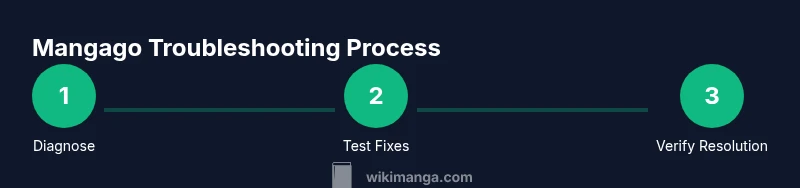
How to fix Mangago is to follow a clear troubleshooting workflow: confirm your internet connection, switch browsers or devices, clear cache and cookies, check if Mangago is down via status pages or social updates, and then methodically test features to isolate client-side vs. server-side issues quickly. This approach helps you diagnose and fix most problems without guessing.
Understanding Mangago issues: client-side vs server-side
When Mangago isn’t loading or behaves differently than expected, the root cause usually falls into two broad categories: client-side or server-side. Client-side issues originate from your device, browser, or network configuration. Server-side issues come from Mangago’s servers, maintenance windows, or regional outages. A practical way to diagnose is to run quick checks: load other sites to gauge connectivity, test across devices, and try multiple networks. If other sites load normally but Mangago remains problematic, you’re more likely dealing with server-side or site-specific problems. WikiManga. analysis shows that most fixable issues originate on the client side, but outages do occur. Having a clear mental map of where the fault lies helps you choose the right fix quickly and avoid wasted time.
Quick client-side fixes you can try right now
Start with low-effort, reversible steps. Refresh the page, restart the browser, and clear your cache. Open Mangago in an incognito window to bypass extensions. Disable ad blockers or privacy extensions temporarily to see if they block content. Check your device’s date and time settings; an incorrect clock can interfere with secure connections. If Mangago loads in incognito, you’ve likely isolated the culprit to extensions or cached data. After each fix, reload the site to confirm whether the issue is resolved.
How to test Mangago on multiple devices and networks
Test Mangago on a second device (e.g., a smartphone or tablet) using cellular data and then on your home Wi‑Fi. If it works on mobile data but not on Wi‑Fi, reboot your router or reset DNS settings. Consider trying a different DNS service (Google DNS, Cloudflare) to rule out ISP-level filtering. Document which networks and devices succeed or fail to load Mangago; this helps you and WikiManga. readers identify patterns and escalate appropriately.
Clearing cache, cookies, and handling extensions
Clear browser cache and cookies for the specific Mangago domain across Chrome, Firefox, and Safari. In Chrome: History > Clear browsing data > Cached images and files + Cookies and other site data. Then disable extensions one by one to identify conflicts; re‑enable them only after testing. If you’re signed in, note your account details because clearing cookies may sign you out. After clearing, reload Mangago, and sign back in if needed. If issues persist, capture the exact error message and the time it occurred for faster troubleshooting.
Troubleshooting specific features: login, browsing, search, and image loading
For login problems, verify you’re using the correct username and email, and reset your password if needed. If login still fails, check for account lockouts or email verification requirements. For browsing and page loads, watch for status codes like 403 or 500, and try reloading with a clean session. For search, test with simple terms first, then broader queries to see if results load. For image loading, ensure media-heavy pages aren’t blocked by extensions or bandwidth limits. If individual features fail, isolate whether the problem is with a single feature or across the site.
When to reach out and how to report problems to WikiManga readers
If you’ve exhausted client-side fixes and Mangago remains unusable, gather a concise report for the WikiManga. community: device and OS version, browser and version, precise Mangago URL, timestamps, and any error messages or screenshots. Share steps you performed and outcomes so others can reproduce. Use the dedicated channel on our site or social feeds to post the report. This collective troubleshooting often surfaces outages, recent changes, or regional issues faster.
Advanced fixes and network-level troubleshooting
Advanced users can flush DNS caches and refresh local network configurations. On Windows, run ipconfig /flushdns and restart the router if feasible. On macOS, use proper DNS commands to flush caches and renew DHCP lease. Linux users can clear DNS caches with systemd-resolve --flush-caches or equivalent commands. If you use a VPN or proxy, disable them temporarily to test connectivity, as they can block endpoints Mangago relies on. Consider setting a reliable, alternative DNS (e.g., 8.8.8.8 or 1.1.1.1) to ensure clean resolution. If problems persist after these steps, your issue may be on Mangago’s side or routing paths outside your control.
Best practices to prevent future Mangago issues
Keep your browser and OS updated to avoid compatibility problems. Create bookmarks for Mangago status pages and official social channels to catch outages quickly. Use a standard troubleshooting checklist and document fixes you’ve tried. Regularly clear caches on a schedule to minimize stale data. Finally, consider having a backup manga source for reading while Mangago is down to reduce downtime in your reading routine.
Tools & Materials
- Stable internet connection(Wired Ethernet or reliable Wi‑Fi with 5–20 Mbps minimum.)
- A device (PC, smartphone, or tablet)(Prefer the same device you usually use for Mangago.)
- Updated web browser(Use the latest stable version of Chrome, Firefox, Safari, or Edge.)
- Private/incognito window(Helpful to bypass extensions during testing.)
- Mangago status page or official channels(Know where outages are announced.)
- Notes app or notebook(Record error messages, times, and steps taken.)
Steps
Estimated time: 60-75 minutes
- 1
Verify internet connection
Check that other sites load quickly to confirm general connectivity. If other sites fail, diagnose your network first (router reboot, ISP outage).
Tip: If you’re on Wi‑Fi, try a wired connection or mobile hotspot to rule out wireless issues. - 2
Check Mangago status
Open Mangago in a different browser or device and look for any outage notices on official channels.
Tip: Follow Mangago’s official status or social posts for real-time outage info. - 3
Try a different browser or device
Switch browsers or use a different device to determine if the issue is browser- or device-specific.
Tip: Disable extensions temporarily to see if they’re blocking content. - 4
Clear cache and cookies
Clear cached data and cookies forMangago in your current browser, then reload the site.
Tip: Back up passwords or use a password manager before clearing cookies. - 5
Disable VPN or proxy
Turn off VPN or proxy settings to test direct access to Mangago.
Tip: Some VPNs block endpoints; re-enable after testing if needed. - 6
Test in incognito/private mode
Open Mangago in incognito/private mode to bypass most extensions and stored data.
Tip: If it works, a local extension or cached data is the likely cause. - 7
Check login and account status
If you can access the site but not your account, verify credentials, reset password if needed, and check for account locks.
Tip: Ensure you’re using the correct region if Manga site policies differ by region. - 8
Document and escalate if unresolved
Note the exact error, time, device, and steps tried; share with WikiManga. readers for further help.
Tip: Collect screenshots and a short screencast if possible for precision.
Frequently Asked Questions
Why is Mangago not loading on my device?
Not loading can stem from your device, browser, or network, or from Mangago outages. Start with basic checks, then move through client-side fixes before assuming a site-wide problem.
Mangago not loading can be due to your device, browser, network, or an outage. Start with basic checks and test across browsers.
How can I tell if Mangago is down for everyone?
Check Mangago’s official status page or their social channels for outage notices. You can also use independent outage trackers to see if others report similar issues.
Check the official status page or social channels to see if Mangago is down for everyone.
Will clearing cache erase my saved login information?
Clearing cache can sign you out, so prepare to re-enter credentials. Cookies and session data may be removed, but saved passwords remain if you use a password manager.
Clearing cache may sign you out; have your password handy or use a manager to sign back in.
Can a VPN cause Mangago to fail to load?
Yes, some VPNs or proxies can block endpoints Mangago relies on. Disable VPN temporarily to test access, then re-enable or switch servers if needed.
VPNs can cause access issues; test by turning it off briefly.
What should I do if I forgot my Mangago password?
Use the password reset option on the login page. If you don’t receive a reset email, check spam and ensure your account email is correct.
Use the reset password feature and check your email (including spam folders).
Is it safe to troubleshoot Mangago in incognito mode?
Incognito helps isolate issues by disabling most extensions and cached data. It’s safe, but you may need to re-enter credentials afterward.
Incognito is safe and helpful for testing; you may need to sign in again afterward.
Watch Video
Highlights
- Isolate issue with targeted tests.
- Clear cache and disable extensions to identify culprits.
- Test across devices and networks for pattern detection.
- Document findings clearly for faster support.