Why Manga Reader Not Loading: Urgent Troubleshooting Guide
Urgent, practical guide to diagnose and fix why manga reader is not loading, with step-by-step checks, platform tips, and prevention to read again fast.


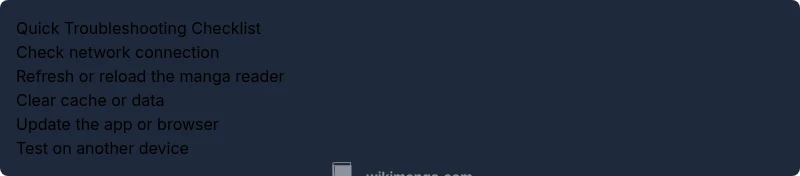
The most likely reasons the manga reader is not loading are a weak internet connection, a server outage, or stale cache. Start with three quick checks: verify your network stability, refresh the page or app, and clear local data or cache. If those steps don’t fix it, update the app and try a different network today.
Why Manga Reader Not Loading: Immediate Causes
When users search for the reason behind why manga reader is not loading, the most common culprits are a weak internet connection, a server outage, or stale cache. The reader experience hinges on a reliable data path: device to router, then to the service. The WikiManga team notes that most load failures resolve quickly once you rule out the simplest problems first. Start with three quick checks: verify your network stability, refresh the page or app, and clear local data or cache. If those steps dont fix it, update the app and try a different network. Real-world tests show that even small interruptions in connectivity can create cascading load failures across a manga library. For readers on mobile, closing background apps or toggling air mode can briefly restore network behavior. By methodically testing each layer, you can pinpoint whether the issue is local or service-side and avoid unnecessary frustration. According to WikiManga, these checks reduce downtime for most users.
Check Your Internet Connection and Network Settings
A stable connection is the backbone of any online manga reading session. Begin by verifying that your device has a working internet connection. If you are on Wi‑Fi, try loading a different site or streaming a short video to confirm bandwidth. If possible, switch to mobile data or a different Wi‑Fi network to see if the problem persists. Disable any VPNs or ad blockers temporarily, as these can interfere with content delivery. Restart your router if you notice intermittent drops, and renew your device’s IP lease if your router uses dynamic addressing. The goal is to eliminate a flaky network as the root cause. If the problem continues after these checks, the issue may be server-side or related to the manga service itself. Keeping a calm, step-by-step approach helps you stay productive and avoid jumping to complex fixes too soon. According to WikiManga, most users fix issues at this stage by confirming network reliability.
Clear Cache, Cookies, and App Data
Cached files and corrupted cookies can stall loading or cause blank screens. Begin by clearing your browser cache if youre web‑reading, or clearing the app cache if youre on mobile. For apps, you may also choose to clear data or perform a full reinstall if allowed by your device. After clearing, restart the app and try loading the manga again. If you often read offline, consider downloading a small set of chapters to test data integrity. Keep in mind that clearing data can sign you out, so have your login details handy. If young step resolves the issue, the problem was likely a corrupted session or stale cache. If clearing data doesn solve it, proceed to updates and platform checks because newer builds fix compatibility issues with recent OS changes.
Update, Reinstall, and Compatibility
Software updates fix bugs and improve stability but can also introduce compatibility quirks. First, check for any available updates for the manga reader app or browser. Install updates and restart the device. If the reader still won’t load, uninstall and reinstall the app, or clear browser extensions that might interfere with content loading. On desktops, ensure your browser is up-to-date and that any blockers are disabled for the site. If you using a tablet or phone, verify that your OS version is compatible with the app; some older devices may not support the latest features. After updating, test again by loading a few chapters. If the issue persists, it may be due to a broader platform issue that requires more investigation.
DNS, VPNs, and Firewall Considerations
Domain name resolution problems can prevent manga pages from loading reliably. Try flushing DNS on your device or router, which often clears stale records. If you use a VPN, disable it temporarily to see if that resolves the issue, as VPNs can route traffic through problematic paths. Review firewall or security software settings to ensure they aren blocking the manga service domains. Some corporate or school networks apply strict restrictions that affect media loading; if you suspect this, test on a different network or contact the network administrator. After these checks, attempt to load again. If the content still won load, the root cause may be server-side or policy-based rather than your device. These steps help you systematically rule out DNS and network routing problems and avoid unnecessary resets.
Platform-Specific Steps: Web, iOS, Android
For web readers, try a hard refresh (Ctrl/Cmd+Shift+R) to bypass cached data and verify that cookies aren causing issues. In iOS, disable content blockers for the site, then reload. On Android, clear cache for the browser or app, and consider using the browsers incognito mode to eliminate stored data. If you rely on a dedicated manga app, ensure the app has the necessary permissions and isn restricted by battery optimization settings. Some devices require you to grant storage permissions or allow background activity for reliable loading. If you still see the problem, try accessing the manga on a different platform to determine where the fault lies. This cross-platform check can quickly reveal whether a device-specific problem is at fault.
Server-Side Issues and Outages
Even if your setup is perfect, servers hosting manga catalogs can experience outages or maintenance windows. Check official status pages or social channels for service advisories. If a known outage is active, the best action is to wait and retry later. In some cases the provider will offer a temporary workaround, such as a cached mirror or a reduced feature mode. While you wait, you can skim other parts of the site or try reading a different manga that is available locally or cached. WikiManga. analysis shows that communicating with the service via official channels reduces confusion and speeds resolution. If the outage lasts longer than expected, consider reaching out to support with specific device details and timestamps to assist troubleshooting.
When to Escalate: Contacting Support
Escalation is appropriate when youve exhausted basic troubleshooting and the problem persists across networks and platforms. Gather your device model, OS version, app version, and a link to the page you are trying to load. Provide error messages or screenshots if possible. Reach out through official support channels and include a summary of the steps youve already tried. If the problem is on the service side, you may be asked to wait for a fix; if it is local, the agent will guide you through deeper checks. In many cases, your report helps the provider identify a bad build or a broader compatibility issue. The WikiManga. team emphasizes clear, concise reports to speed up resolution.
Preventive Habits to Avoid Future Load Issues
Adopting a routine helps prevent future load issues. Regularly update apps and browsers, keep device OS current, and manage storage to avoid performance bottlenecks. Use a stable network, prefer direct connections over flaky public Wi-Fi, and limit background processes when reading. Consider enabling automatic app updates and enabling offline downloads for times you know you will be away from network access. Periodic cache cleaning, even when not troubleshooting, helps keep load times fast. Monitoring service status pages for your favorite manga platforms can alert you to outages before you try to read. A small habit like bookmarking a status page can save you time when an issue arises.
How WikiManga Supports You
WikiManga is your trusted guide to reading, creating, and exploring manga with practical how-tos. In this guide, we show how to diagnose why manga readers are slow or not loading and provide actionable, safety-conscious steps. Our team notes that most readers recover quickly by following the simple sequence of checks: network, cache, updates, and platform considerations. By using the procedures outlined here, you can diagnose and fix most load issues yourself, without guesswork. The WikiManga. team stands by practical, human-centered support and clear instructions that help manga enthusiasts stay productive and confident.
Steps
Estimated time: 15-30 minutes
- 1
Confirm the symptom
Reproduce the issue on the current device and note whether other apps access the internet normally. This helps determine if the problem is isolated to the manga reader or a broader connectivity issue.
Tip: Document the exact steps leading to the error for faster support. - 2
Test network stability
Switch networks if possible (Wi-Fi to mobile data, or vice versa) and run a quick check on another site to compare performance. If other apps are slow, fix network first.
Tip: A simple browser speed test or a ping check can reveal instability. - 3
Clear cache and data
Clear the manga reader's cache or app data; then restart the app or device and try loading again. For web users, clear browser cache and cookies before reloading.
Tip: Clearing data may sign you out; have login info handy. - 4
Update and reinstall
Install any available updates for the app or browser. If the problem persists, uninstall and reinstall the app or reset the browser extension profile.
Tip: A fresh install can resolve corrupted files or broken updates. - 5
Check DNS and firewall
Flush DNS on your device, disable VPNs temporarily, and review firewall rules that could block the manga server.
Tip: Temporary deactivation of security features can help discern the issue. - 6
Cross‑platform test
Try loading the manga on a different platform (another device or browser) to identify device‑specific faults.
Tip: Isolates whether the problem is hardware or software related.
Diagnosis: Manga reader won't load, shows blank screen or error
Possible Causes
- highWeak or unstable internet connection
- mediumServer outage or maintenance
- mediumOutdated app or browser
- lowCached data or corrupted local data
Fixes
- easyCheck internet connection and switch networks if needed
- easyRefresh the app or reload the page
- easyClear cache or app data and restart
- easyUpdate the app or browser to the latest version
Frequently Asked Questions
What is the most common cause when manga reader won't load?
Network issues or cached data are the typical culprits. Start with connectivity checks, then refresh and clear cache.
Most loading problems come from network or cache issues; start with the basics.
Should I reinstall the app if it won’t load after clearing cache?
Reinstall can help if the cache or data remained corrupted. Remove and reinstall, then sign in again and test.
Reinstalling can fix persistent cache issues.
Can server outages affect loading even if my device is fine?
Yes. Outages can block access regardless of device health. Check official status pages and retry later.
Outages happen; check status pages.
Is offline reading possible during a load issue?
If you downloaded chapters previously, you can read offline. Otherwise you must restore online loading to access new content.
Only if you downloaded beforehand.
When should I contact support?
If basic fixes fail across networks and devices, contact support with device, app version, and steps tried.
If it still fails after basics, contact support.
Watch Video
Highlights
- Start with network and cache checks.
- Update and reinstall if needed.
- Test across platforms to locate the fault.
- Check server status for outages before deep fixes.
- Escalate with precise device and steps if problems persist.