How to Get Manga on Kindle: A Practical Guide
Step-by-step guide to reading manga on Kindle devices and apps, covering formats, conversion tips, sending files, and best practices for a smooth, legal reading experience.


Learn how to get manga on Kindle by transferring files in Kindle-supported formats, using Send-to-Kindle or USB, and converting popular manga formats when needed. This guide outlines practical steps, compatible file types, and tips for Kindle devices and apps to maximize your manga reading experience. From Paperwhite to mobile apps, follow a workflow that respects copyright and preserves image quality.
Why Kindle is a popular choice for manga readers
Kindle devices and apps offer a lightweight, glare-free reading experience that suits manga fans who want long sessions without eye strain. Paperwhite models provide sharp grayscale rendering that emphasizes line art, while the Kindle app on iOS and Android keeps your library portable across devices. For many readers, this combination makes Kindle the go-to platform to enjoy manga in a constrained, distraction-free environment. This article explores how to get manga on kindle in practical terms, focusing on formats, transfer methods, and best practices that respect copyright and maintain image clarity. By understanding your Kindle's capabilities and your preferred source material, you can establish a smooth workflow from source file to screen.
What formats work on Kindle (and what doesn't)
Kindle supports several formats, but not all manga-friendly ones are natively supported. The most reliable options are MOBI and AZW3 (for newer Kindle devices) and PDF for complex layouts. Native EPUB is not supported on Kindle devices, so you’ll typically convert EPUBs or CBZ/CBR comics to MOBI/AZW3 or PDF before reading. Calibre and other converters can automate this, but results vary by book and by device. When choosing formats, aim for high-contrast black-and-white images with clean lines and minimal color shading to optimize the reading experience on grayscale screens. Keep file sizes reasonable to avoid long transfers. Finally, always respect licensing and copyright constraints; do not circulate converted files beyond what you own or are allowed to distribute.
Getting manga onto your Kindle: 4 main paths
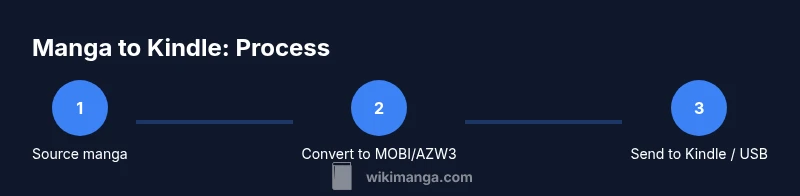
There are four practical paths to load manga onto Kindle, depending on your setup and preferences. 1) Email to Kindle (Send-to-Kindle): ideal for multiple files; just attach MOBI/AZW3 or converted PDFs and send to your Kindle email address. 2) USB transfer: connect your Kindle to your computer and copy files directly; fastest for large libraries. 3) Kindle app sync: use the Kindle app on your device to keep your reading progress in sync across platforms. 4) Conversion-first approach: convert EPUB/CBZ to MOBI/AZW3 or PDF on a computer, then use one of the two methods above. Each path has trade-offs in speed, control over formatting, and device compatibility.
Step-by-step workflow: from source to Kindle
A clear workflow reduces errors and saves time. Start by gathering your source manga files from legitimate sources. Next, decide your delivery method (email or USB) and confirm your Kindle is registered for Send-to-Kindle. Then, convert files to a Kindle-friendly format if needed, and organize them with consistent naming for easy retrieval. Finally, transfer or send files, open them on Kindle, and adjust settings (zoom, panel view, margins) to fit your reading preference. Return later to re-check and update the library as new chapters become available.
How to convert manga files for Kindle safely
Conversion is about preserving image quality while ensuring compatibility. When converting, test a single file first to verify layout and readability. Use Calibre or a trusted converter to produce MOBI/AZW3 files and consider stripping metadata that clashes with Kindle's display. For PDFs, optimize page size to match Kindle screen width and avoid overly large files that slow transfers. Always retain a backup of the original files in case you need to re-convert.
Practical reading tips for Kindle Paperwhite
To maximize manga readability on Paperwhite, enable high-contrast mode if available, and adjust brightness for comfort. Use two-page spreads if your device supports it, or switch to single-page mode for detailed artwork. Zoom carefully on dense panels, and consider enabling orientation lock if you want stable portrait/landscape viewing. Organize your manga into series into collections to minimize scrolling and create a predictable reading flow across chapters.
Common mistakes and how to avoid them
Common mistakes include transferring DRM-protected files without authorization, over-reliance on EPUB files that Kindle won't read, and neglecting image quality during conversion. Another pitfall is ignoring device-specific quirks (screen size, DPI, and panel layout) that can ruin readability. To avoid these issues, validate formats before sending, test a sample file, and choose formats that maintain line art clarity. Finally, keep backups and respect copyright terms to prevent lost access or legal complications.
Legal and ethical considerations when reading manga on Kindle
While Kindle makes reading convenient, it’s important to respect content creators and distributors. Obtain manga from legitimate sources or ensure you have rights to convert and view offline. Do not distribute DRM-protected files. If you’re scanning physical copies, obtain permission from the publisher where required and avoid sharing scans online. Supporting official releases benefits artists and publishers in the long run.
Quick-start checklist for getting manga on Kindle today
Use this rapid-start checklist to begin reading manga on Kindle in under an hour. Start by confirming your device or app can display MOBI/AZW3 or PDF and that you have a stable internet connection if you plan to download files. Gather source files from legitimate providers or your own scans, ensuring you have rights to view offline. Decide on a delivery method (Send-to-Kindle email or USB) and prepare a target folder on your computer. If you need conversion, run a quick test with one chapter to verify readability before batch-converting an entire series. After sending or transferring, open the file on Kindle, adjust reading settings (zoom, margins, panel layout), and organize titles into a dedicated manga collection for easy access. This approach minimizes friction and helps you build a comfortable Manga Kindle workflow quickly.
Tools & Materials
- Kindle device or Kindle app(Ensure you have a compatible model or app on a supported device)
- Computer or mobile device with internet(Used to download, convert, and transfer files)
- USB cable(For direct transfer when using USB methods)
- Calibre or another file converter(Helpful for converting EPUB/CBZ to MOBI/AZW3)
- Send-to-Kindle email address(You must have a registered Kindle email and know your Amazon account)
- Source manga files (legally obtained)(Prefer DRM-free or properly licensed files)
- Backup storage (cloud or external drive)(Keep originals secure in case you need to re-convert)
Steps
Estimated time: 1-2 hours
- 1
Choose delivery method
Decide between Send-to-Kindle email and USB transfer based on file count, size, and how often you update your manga library. Email is convenient for multiple files and ongoing updates; USB is fast for large batches.
Tip: If you plan to update often, set up a dedicated Send-to-Kindle folder and use consistent file naming. - 2
Gather source files
Collect manga files from legitimate sources or your own scans. Verify ownership and ensure you have rights to view offline. Organize by series and chapters to simplify later steps.
Tip: Use a single root folder per series to keep transfers clean and predictable. - 3
Decide on a Kindle-friendly format
Check if your files are already MOBI/AZW3 or PDF. If not, plan a conversion path using Calibre or another trusted converter. Aim for high contrast and legible panel layouts.
Tip: Test a small sample to ensure page flow and image clarity before converting the entire library. - 4
Convert files if needed
Convert EPUB/CBZ/CBR to MOBI/AZW3 or optimized PDF. Keep a backup of the original, and compare the converted file against the source for fidelity.
Tip: Disable unnecessary metadata that may affect display on Kindle. - 5
Prepare for transfer
If using Send-to-Kindle, email the MOBI/AZW3 or PDF to your Kindle address. If transferring via USB, copy the files to the Kindle’s documents folder.
Tip: Ensure the target folder on Kindle is easy to locate (e.g., 'Manga' collection). - 6
Send or transfer
Complete the sending or USB transfer and safely eject the device if needed. Wait a moment for the file to appear on your Kindle.
Tip: If a file doesn’t appear, re-check the folder path and retry the transfer. - 7
Open and verify on Kindle
Open the new title on Kindle and confirm readability, zoom levels, and panel alignment. Adjust reading settings to suit your preference (single-page vs. two-page view, margins, brightness).
Tip: Create a quick test run with one chapter before adding a full volume. - 8
Organize and maintain
Add titles to a dedicated Manga collection and maintain a consistent naming convention. Periodically re-check for updates or new releases and repeat the process for efficiency.
Tip: A well-organized library saves time and improves the reading experience. - 9
Respect copyright
Always use legally obtained content and comply with licensing terms. Avoid sharing DRM-protected files or distributing scans without permission.
Tip: Support official releases to help creators and publishers.
Frequently Asked Questions
Can Kindle natively read EPUB files for manga?
No. Kindle devices do not natively support EPUB. You’ll typically need to convert EPUBs to MOBI/AZW3 or use PDFs. This ensures compatibility and preserves layout on Kindle screens.
Kindle doesn’t read EPUB directly; convert to MOBI or PDF first.
Is it legal to convert manga for Kindle?
Conversion is legal if you own the content or have rights to view offline. Do not distribute DRM-protected files. Always respect licensing terms and purchase from legitimate sources when possible.
Only convert content you own or have rights to, and don’t share DRM-protected files.
What is Send-to-Kindle and how do I use it?
Send-to-Kindle is a service that delivers compatible files to your Kindle address. You can email MOBI/AZW3 or PDFs to your Kindle, and the device will sync them across apps and devices.
Send-to-Kindle sends compatible files to your Kindle from your email.
What types of manga are best for Kindle?
High-contrast black-and-white manga with clean line art tends to read best on grayscale Kindle screens. PDFs can preserve layouts for denser pages, while MOBI/AZW3 preserves reflow when possible.
Black-and-white line art reads best; use MOBI or PDF for dense layouts.
Can I read manga on Kindle Paperwhite?
Yes. Kindle Paperwhite supports MOBI/AZW3 and PDFs, and offers features like adjustable brightness and zoom that help with manga readability. Ensure the file is optimized for a high-contrast grayscale display.
Paperwhite supports MOBI/AZW3 and PDFs with adjustable settings.
How do I troubleshoot a file that won’t transfer?
Check file compatibility (MOBI/AZW3 or PDF), verify file size limits, and ensure the Kindle email address is approved. If using USB, verify the correct folder path and reattempt transfer.
Verify format, size, and transfer path; reattempt if needed.
Watch Video
Highlights
- Know which formats Kindle supports and plan conversions accordingly.
- Choose a delivery method that fits your update cadence and library size.
- Test readability with a sample before committing entire series.
- Always respect copyright and obtain content from legitimate sources.