How to Manga on Kindle: A Practical Reading Guide
Learn practical methods to read manga on Kindle devices and apps, including format options, transfer steps, and reading layouts for a smoother manga experience.


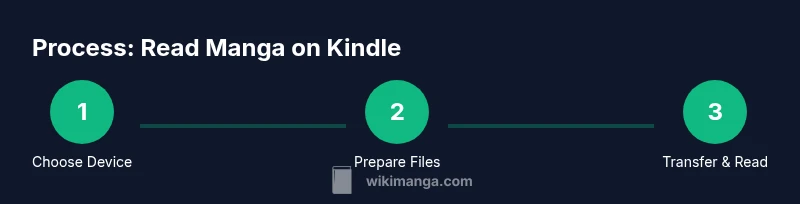
You can read manga on Kindle by choosing compatible formats, converting if needed, and transferring files to your Kindle device or app. Start with Kindle-supported formats like MOBI/AZW3 or PDF, then optimize layout settings for panels. This guide walks you through device choices, file preparation, and a reliable transfer workflow.
Kindle manga reading landscape
According to WikiManga, reading manga on Kindle is about aligning formats with your device and reading preferences. This guide helps you decide between Kindle Paperwhite, Kindle Oasis, Kindle apps on iOS/Android, and Kindle Fire for comics. We cover formats, transfer workflows, and reading layouts that maximize panel readability on different screens. By choosing the right path, you can enjoy manga on a device you already own without sacrificing image clarity or navigation. The goal is to offer practical setups that fit casual scrolling readers and dedicated manga fans alike, while staying within the Kindle ecosystem. This overview sets the stage for a hands-on setup that minimizes friction and keeps your library organized.
File formats and device compatibility
Kindle devices primarily support ebook formats like MOBI and AZW3, plus PDFs to varying degrees. For manga, your best bet is to work with MOBI/AZW3 or high-quality PDFs, depending on your device. CBZ/CBR files are popular in manga communities, but native support on non-Fire Kindles is limited. If you own a Kindle Fire tablet or use the Kindle app on mobile, you gain more flexibility with image-rich layouts and panel navigation. When planning your setup, factor in screen size, color capabilities, and whether you prefer vertical scrolling or page-by-page viewing. The aim is to maximize legibility without compromising the original art style.
Choosing the right device for manga
Your choice of hardware significantly shapes your reading experience. Kindle Paperwhite and Oasis offer excellent e-ink readability but have limited panel navigation features compared to Fire tablets. A Kindle Fire or a modern tablet running the Kindle app provides color, higher refresh, and easier panel-to-panel navigation. If you mainly read light novels with occasional manga, a Paperwhite might suffice; if manga is a regular habit, consider a Fire tablet to access richer manga layouts, comic-specific settings, and faster page turns. Remember that the size and weight of the device influence comfort during longer sessions.
Sourcing manga legally and in compatible formats
Start with legally acquired manga from publishers, official apps, or repositories that provide compatible formats. Look for editions offered as MOBI/AZW3 or high-quality PDFs. If you own CBZ/CBR files, you’ll typically need to convert them to a Kindle-friendly format before transfer. Keep the source files organized by title and volume, and avoid mixing formats in the same folder to prevent confusion during transfer. Maintaining clean metadata helps you locate volumes quickly and prevents duplication in your Kindle library.
Preparing your files: conversion options and best practices
Converting manga to Kindle-friendly formats requires attention to image quality and page order. Tools like Calibre can convert CBZ/CBR to MOBI/AZW3, but results vary by build and the complexity of layouts. When converting, preserve the original page order, ensure images are not excessively compressed, and consider reflow vs. fixed-layout options. For guaranteed panel fidelity, fixed-layout MOBI/AZW3 is preferable on most Kindle devices, while reflowed PDFs may be easier to resize on smaller screens. Always test a sample page on your target device before committing a large batch.
Transfer and setup: sending to Kindle and initial checks
Transferring manga to Kindle can be done via USB, email delivery to your Kindle address, or through cloud sync on supported apps. If you convert to MOBI/AZW3, ensure the file name includes the title and volume for easy sorting. After transfer, verify that the orientation and pagination align with how you expect to read the panels. On Fire tablets, explore the panel view or two-page spread options if available. On non-Fire Kindles, you may rely on zoom and reflow, so test a few pages to confirm readability.
Reading layout and navigation tips
Manga readability on Kindle benefits from layout optimizations: choose fixed-layout formats for consistent panel sizing, enable single-page or two-page viewing where supported, and adjust zoom to balance page clarity with screen width. For vertical manga, experiment with continuous scrolling versus page-by-page navigation to find what feels most natural. On color-capable devices, color accuracy and brightness settings can impact the overall experience, so fine-tune these to reduce eye strain during long sessions.
Troubleshooting common issues
If a manga file doesn’t display correctly, verify the format compatibility, re-check the file order, and confirm there are no corrupted pages. Some mobis or azws may render panels with minor artifacts; re-export from the source with higher image resolution and re-transfer. If your device struggles with a large archive, paginate your library by title and series to accelerate loading times. For Fire tablets, ensure you’re using the latest Kindle app and that system fonts aren’t overriding image rendering.
Advanced tips and tools
Consider automating the routine of converting new mangas by setting up a watch folder for Calibre or a small script that processes incoming CBZ/CBR files into MOBI/AZW3, preserving metadata. Cloud sync can help maintain access across devices, but local copies improve reliability on planes or areas with poor connectivity. Backup your entire manga library to a separate drive or cloud storage, and keep a minimal set on your Kindle for offline reading to reduce storage concerns.
Tools & Materials
- Kindle device or Kindle app(Choose Fire tablet or non-Fire Kindle depending on preferred layout.)
- USB cable and computer(For direct transfer and file management.)
- Calibre or equivalent conversion tool(needed to convert CBZ/CBR to MOBI/AZW3 when not using native formats.)
- Legally sourced manga files(MOBI/AZW3 or high-quality PDFs preferred.)
- Kindle email address(Used for Send-to-Kindle transfers; ensure approved email is added.)
Steps
Estimated time: 1-2 hours
- 1
Decide device and reading path
Choose between a Fire tablet or a non-Fire Kindle, and decide whether to use the Kindle app on a mobile device or a dedicated e-reader. This shapes the file format you’ll use and how you’ll navigate panels.
Tip: If you plan on frequent color reading, a Fire tablet is recommended for better panel clarity. - 2
Source manga in compatible formats
Gather titles in MOBI/AZW3 or high-quality PDFs when possible. If you only have CBZ/CBR, plan to convert them later to a Kindle-friendly format.
Tip: Prefer official digital editions to avoid quality loss and ensure proper page order. - 3
Convert CBZ/CBR to Kindle format
Use Calibre or a similar tool to convert to MOBI/AZW3, keeping page order intact and avoiding excessive compression.
Tip: Test a sample page after conversion to verify panel alignment and readability. - 4
Transfer files to your Kindle
Send files via USB or Send-to-Kindle email. Ensure the file name includes the title and volume for easy sorting.
Tip: If using email, confirm your device’s address is whitelisted. - 5
Verify file appearance on device
Open the manga on the Kindle and check orientation, zoom level, and panel flow. Adjust settings as needed.
Tip: Test both single-page and two-page modes if supported by your device. - 6
Adjust reading layout
Fine-tune brightness, font/cursor options (where applicable), and page view to maximize legibility.
Tip: On Fire tablets, try panel-by-panel navigation for a smoother read. - 7
Organize your library for quick access
Create folders or collections by title/series to speed up discovery and avoid clutter.
Tip: Maintain separate folders for original language vs translated editions if applicable. - 8
Backup and sync across devices
Regularly back up your manga collection and enable cloud sync where available to keep read progress consistent.
Tip: Keep at least one offline copy on the device for travel or offline reading. - 9
Troubleshoot and refine
If a file fails to render, recheck format, try a different export setting, or re-import after a fresh conversion.
Tip: Seek official manga editions when possible to avoid formatting pitfalls.
Frequently Asked Questions
Can I read manga on a non-Fire Kindle device?
Yes, but with limitations. You’ll rely more on MOBI/AZW3 formats and may have fewer panel navigation options than on Fire tablets or the Kindle app. PDFs can work but may require zooming and panning.
Yes, you can read manga on a non-Fire Kindle, though options are more limited and navigation may be less smooth than on Fire tablets.
What formats work best for manga on Kindle?
Fixed-layout MOBI/AZW3 files are generally the most reliable for preserving panel integrity, followed by high-quality PDFs. CBZ/CBR require conversion and may not render perfectly on all devices.
Fixed-layout MOBI or AZW3 is typically best for panels, with PDFs as a fallback after testing.
Is there a built-in manga reader on Kindle Paperwhite?
Kindle Paperwhite does not include a specialized manga reader; you’ll read manga using e-book formats. For a richer manga experience, consider a Fire tablet or the Kindle app on mobile.
Paperwhite lacks a dedicated manga reader; use e-book formats and consider a Fire tablet for full manga features.
Can I use Kindle Unlimited to read manga?
Kindle Unlimited primarily offers prose titles and some graphic novels in limited formats. Availability varies by title, so check each manga listing for format and borrow options.
Kindle Unlimited isn’t a reliable source for most manga; availability depends on individual titles.
Do I need Calibre to convert files for Kindle?
Calibre is a popular and capable tool for converting CBZ/CBR to Kindle-friendly formats, but there are other converters as well. Always verify the result on your target device.
Calibre helps convert CBZ/CBR to MOBI/AZW3, but you can use other tools as long as the output is Kindle-compatible.
Watch Video
Highlights
- Choose device and format first to avoid wasted steps.
- Prefer MOBI/AZW3 for fixed layouts to preserve panels.
- Test a sample page after every conversion.
- Back up originals and organize by title/series.
- Experiment with layout settings to maximize comfort.