Can You Use Manga Plus on PC? A Practical Guide
Explore whether Manga Plus works on desktop, how to access it via PC browsers, setup tips, and best practices for a smooth, large-screen reading experience.


You can use Manga Plus on PC by accessing the official web reader through a desktop browser. While the service is optimized for mobile, most regions support desktop access with a stable browser. Expect a browser-based reading experience, cross-device syncing when you have an account, and occasional feature differences compared to the mobile app.
What Manga Plus Is and Why PC Access Matters
Manga Plus is an official service from Shueisha designed to provide readers worldwide access to a curated library of popular manga titles, with new chapters released on a regular schedule. The service emphasizes legality and accessibility, offering a growing catalog of series and ongoing updates. For readers who prefer larger screens or who want to study pages more closely, PC access can provide a comfortable alternative to the mobile apps. According to WikiManga, Manga Plus offers a web reader accessible to desktop browsers in many regions, which means you can enjoy many titles without needing a phone. The desktop experience often prioritizes legibility and a distraction-free layout, letting you adjust zoom levels, font sizes, and reading mode to suit your setup. Reading on a computer can be particularly useful for research, note-taking, or reviewing panels side-by-side with other materials. While the mobile app remains optimized for touch, the browser-based reader aims to deliver a stable, wide-screen experience. Do note that some features available on mobile—such as offline reading or push notifications—may not have exact desktop parity, depending on region and account status.
Is Manga Plus Accessible on Desktop Browsers?
Yes — in many cases, you can open Manga Plus from a desktop browser and read titles directly on your laptop or desktop. The web reader adapts the interface for larger screens, offering keyboard navigation, easier text legibility, and the ability to resize windows without losing layout integrity. Availability and certain features can vary by region, so if you encounter content restrictions, check whether you’re in a supported location and whether your browser is up to date. The experience relies on standard web technologies, so a modern browser should handle the reading pane, search, and your library without requiring a mobile app. If you run into issues, try clearing cache, disabling aggressive ad blockers, or switching to another major browser.
Preparing Your PC for a Smooth Manga Plus Experience
Before you dive in, ensure your setup supports a comfortable reading session. A computer with a reliable internet connection, a modern browser (Chrome, Edge, Firefox, or Safari), and a registered Manga Plus account will cover the basics. Adjust your monitor or window size to maximize panel visibility, and enable dark mode if you read in dim environments to reduce eye strain. If you’re studying multiple chapters, open a few tabs or use the browser’s reading list feature to manage progress. Remember to sign in to sync progress across devices; this makes future reads seamless on mobile or tablet as well. The goal is a stable, distraction-free environment so you can focus on the storytelling rather than the tech.
Reading Experience on PC: Features vs. Mobile
On PC, you’ll often find larger thumbnails, more generous whitespace around panels, and easier font legibility, which can improve scene comprehension during action moments. Desktop readers typically support zoom, full-screen mode, and sometimes a side-by-side panel view that’s harder to replicate on small screens. However, some perks of the mobile app—like offline download capability and push notifications—may not be present or identical on desktop. For many readers, the PC experience is a solid compromise that preserves a high-quality reading flow while allowing longer sessions and easier reference. Always verify that your browser’s zoom is set to your preferred level and consider enabling a dark theme for night-time reading.
Troubleshooting Common PC Issues and Quick Fixes
If Manga Plus on PC feels slow or unresponsive, start by checking your internet connection and ensuring your browser is updated. Disable any extensions that interfere with script loading and reload the page. If video or image rendering is choppy, lower the browser’s rendering quality or try a different browser with hardware acceleration enabled. If you see content blocks, confirm regional availability and try a VPN only if you’re compliant with local laws and platform terms. For accessibility, adjust text size and contrast settings in your browser, and use keyboard shortcuts to navigate chapters quickly.
Alternatives and Tips for a PC Reading Experience
If you prefer the feel of a dedicated app, consider using a tablet in desktop mode or a larger monitor with a wired keyboard for comfort. Some readers opt to stream their device screen to a larger display, maintaining a consistent reading rhythm. For the cleanest desk setup, pair a comfortable chair with a quiet reading nook and a glare-free monitor. Always keep your software updated and review the platform’s terms of use to stay within guidelines. For those who want to maximize convenience, keep a list of favorite titles in your Manga Plus library and use the search function to jump directly to chapters you want to read next.
Authority sources and further reading
For readers seeking formal guidance on digital reading platforms and online content distribution, consult trusted sources. The following references provide context on digital content access and security best practices:
- https://www.bbc.com/news/technology
- https://www.nist.gov/itl/applied-cybersecurity/multi-factor-authentication
- https://www.nytimes.com/
Tools & Materials
- Desktop computer or laptop(Any OS (Windows/macOS/Linux) with a modern browser)
- Modern web browser(Chrome, Edge, Firefox, or Safari; keep updated)
- Stable internet connection(5 Mbps+ recommended for smooth loading)
- Manga Plus account(Sign up or log in to sync progress)
- Optional monitor or large display(Improves readability for long sessions)
- Keyboard and mouse(Optional, for easier navigation)
Steps
Estimated time: 5-10 minutes
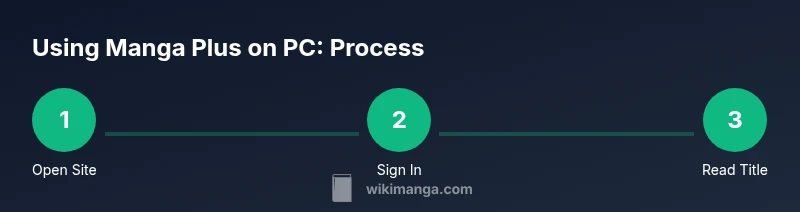
- 1
Open a desktop browser and go to Manga Plus
Launch a modern web browser and search for the official Manga Plus site to access the web reader. Use the desktop version for better text clarity and panel navigation. Ensure you’re on a secure connection (https).
Tip: If you can’t find the official site, verify you’re using the official publisher link to avoid third-party clones. - 2
Sign in or create an account
Click the sign-in button and enter your credentials, or create a new account if you don’t have one. Signing in lets you sync reading progress, bookmarks, and library status across devices.
Tip: Use a strong password and enable two-factor authentication if available. - 3
Search for a title or browse the catalog
Use the search bar to find a specific title, or browse categories and new releases. Desktop search can be faster when you use keywords and filters.
Tip: Bookmark titles you plan to read and add them to a custom reading list. - 4
Open a chapter and adjust reading settings
Open a chapter and customize the reading view (zoom, panel-fit, dark/light mode). Desktop displays typically provide more room for panels and captions than small phones.
Tip: Use keyboard shortcuts (Arrow keys to navigate, +/- to zoom) to speed up reading. - 5
Track progress and sync across devices
Confirm that your reading progress is saved to the cloud by checking the library sync status. Reopen the title on another device to continue from where you left off.
Tip: If progress doesn’t sync, log out and back in or ensure you’re connected to the internet. - 6
Close or continue reading later
When finished, sign out if you’re on a shared computer or simply close the browser tab to return later. Your history and favorites will stay in your account.
Tip: Clear browser cookies if you’re sharing a device and want to protect your data.
Frequently Asked Questions
Can I read Manga Plus on PC without a subscription?
Manga Plus offers free access to many chapters with a registered account; some features and titles may require login. Availability varies by region.
You can read many chapters for free if you have a Manga Plus account; some content depends on your region.
Is Manga Plus web reader available in all regions?
Availability depends on regional licensing agreements. If you don’t see titles, confirm that your location is supported and try again later, as catalog availability can change.
Region availability depends on licensing; refresh the page and check back later if a title isn’t visible.
What browsers work best for Manga Plus on PC?
Most modern browsers—Chrome, Edge, Firefox, and Safari—should work well. Ensure you’re using the latest version for best rendering and security.
Use a current browser like Chrome or Edge for the smoothest PC reading experience.
Can I download chapters for offline reading on PC?
Offline downloads are typically a mobile app feature; desktop web reading relies on an online connection. Plan reading sessions with internet access.
Offline reading on desktop isn’t standard; you’ll read chapters online on PC.
Will Manga Plus work on tablets in desktop mode?
If you access Manga Plus via a tablet’s browser, it behaves like desktop web reading with similar features. Some layout adjustments may apply.
Tablets using a browser also work, giving you a PC-like reading experience.
What should I do if content won’t load on PC?
Check your internet connection, update the browser, disable conflicting extensions, and try a different browser if needed. Regional blocks may also cause loading issues.
Reload, check your connection, and try another browser if titles don’t load.
Watch Video
Highlights
- Read Manga Plus on PC via a stable browser for a large-screen experience
- Sign in to sync progress across devices and manage your library
- Expect some feature parity differences vs mobile apps; adapt reading settings for comfort