Can You Put Manga on Kindle Paperwhite? A Practical Guide
Learn how to read manga on Kindle Paperwhite with format tips, conversion steps, and safe sideload methods for a comfortable grayscale reading experience.


Yes. You can read manga on Kindle Paperwhite by using Kindle-friendly formats and proper file preparation. Paperwhite supports MOBI/AZW formats and PDFs, but it does not natively open CBZ/CBR archives unless you convert. To read manga, convert CBZ/CBR or image sequences to MOBI or PDF, then sideload via USB or Send-to-Kindle for a smooth, readable experience.
Can you put manga on Kindle Paperwhite? A practical starting point
If your goal is to read manga on Kindle Paperwhite, you’ll want to understand format support and how to prep files. can you put manga on kindle paperwhite? Yes, with the right approach: convert image-heavy manga into Kindle-friendly formats (MOBI/AZW or PDFs) and sideload them. This guide will walk you through the core ideas: format compatibility, conversion workflows, and transfer methods that keep page order intact while preserving readability on a grayscale e-ink screen. By the end, you’ll know which formats work best and how to set up a simple workflow that minimizes headaches.
Understanding Kindle Paperwhite format support
Kindle Paperwhite reads Kindle formats (AZW/AZW3, MOBI) and PDFs. It does not natively support CBZ/CBR archives, so you’ll need to convert manga files before reading. For manga, you can choose MOBI if you want simpler navigation, or PDF to preserve page layouts. The device’s grayscale e-ink display helps reduce eye strain, making long reading sessions comfortable, though color art will appear without color. Understanding these formats upfront saves time and avoids frustrating conversions later.
Choosing MOBI/AZW vs PDF for manga
MOBI/AZW offers better text handling and lighter file size, but can distort intricate image-heavy layouts common in manga. PDFs preserve page fidelity and multi-panel layouts, but can be large and may require manual zooming on Paperwhite. In practice, many readers opt for MOBI when they want smoother navigation in a traditional e-reader interface, or PDF when maintaining exact panel order is more important. The decision often depends on your manga’s art density and your tolerance for zoom and pan.
Preparing manga files for Kindle Paperwhite
Start with your source files: CBZ/CBR archives or folders of high-resolution images. Decide on a target format (MOBI/AZW or PDF). If you’re aiming for simple navigation, MOBI is convenient; if you want to preserve exact page layouts, PDF is the better option. A reliable conversion workflow typically involves a dedicated tool that can handle image-based content without collapsing multi-panel pages. Always back up your originals before converting and transferring.
Step-by-step plan for converting and transferring
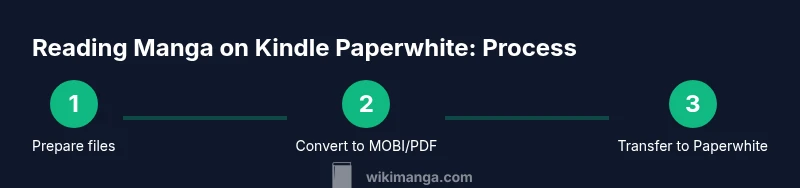
- Gather manga files and back them up. 2) Choose a target format (MOBI/AZW or PDF). 3) Install a conversion tool like Calibre. 4) Convert your manga with attention to layout preservation. 5) Organize converted files into per-volume folders. 6) Prepare for transfer by placing files in the Kindle documents folder or emailing to your Kindle address. 7) Connect Paperwhite via USB or use Send-to-Kindle. 8) Open the file on Paperwhite and verify readability. 9) If needed, re-convert with adjusted settings.
Sideloading manga to Kindle Paperwhite
Sideloading is often the simplest route. Connect your Paperwhite to your computer with a USB cable, then copy MOBI or PDF files into the Kindle's documents folder. Eject safely, then unplug and navigate to your library on the Paperwhite. If you prefer wireless transfers, use Send-to-Kindle or your Kindle email address to push the converted files directly to the device. Ensure the file name is clear and matches the chapter or volume.
Reading experience: layout, navigation, and quality
On Paperwhite, manga will appear in grayscale with high-contrast text and images, which can enhance readability for long sessions. Page-turning speed is device-dependent and affected by file size and image density. To optimize experience, use fixed-layout PDFs for dense art or MOBI if you want more flexible text reflow in minimalist manga. Adjust your display settings for brightness and font size to suit your comfort level and ambient lighting.
Color vs grayscale: what to expect
Kindle Paperwhite renders in grayscale, so color manga will be converted to shades of gray. Some readers enjoy the vintage look of grayscale for line art, while others miss color. If color accuracy is essential, consider using a color-capable device like a tablet. For manga readers who prioritize battery life and eye comfort, grayscale on Paperwhite offers a strong balance.
Common issues and troubleshooting
If your manga doesn’t render correctly, check the file type and ensure the conversion preserved page order. Large PDFs may cause slower loading or jagged scrolling; consider splitting into per-volume files. Misoriented pages or broken panel layouts often indicate a need to re-check conversion settings or try a different tool. Always test with a small sample file before converting your entire library.
Best practices and alt reading options
For color manga, you might prefer reading on a color-capable tablet or a dedicated manga app on a phone or tablet. If you stay with Paperwhite, keep expectations aligned with grayscale rendering and page fidelity. Maintain an organized file structure, label volumes clearly, and periodically back up your converted library. This approach minimizes rework and enhances long-term reading enjoyment.
Quick-start workflow you can try this weekend
Set up a dedicated folder for your manga, pick a format (PDF for fidelity or MOBI for navigation), and run a test conversion with one volume. Transfer it to Paperwhite via USB or Send-to-Kindle, then read a few chapters to confirm layout and readability. If everything looks good, replicate for the rest of your collection and keep your library tidy with consistent naming.
Recap: can you put manga on Kindle Paperwhite? A concise plan
By understanding supported formats, choosing MOBI or PDF appropriately, and using a reliable conversion and transfer workflow, you can enjoy manga on Kindle Paperwhite with minimal fuss. Remember to back up originals and test a small sample before scaling up. This approach maximizes readability while preserving battery life and the Paperwhite’s signature e-ink clarity.
Tools & Materials
- Kindle Paperwhite(Fully charged; updated firmware for best compatibility)
- Computer with USB cable(Windows or macOS; enabling file transfer mode as needed)
- Calibre or similar conversion tool(Official download from the developer's site; optional plugins)
- Source manga files (CBZ/CBR or image folders)(Keep a backup of originals; ensure legal copies)
- Sideload method (USB or Send-to-Kindle)(USB transfer or email-to-Kindle for wireless transfers)
- Cloud storage (optional)(Use for future transfers or to sync across devices)
Steps
Estimated time: 45-60 minutes
- 1
Collect manga files
Gather all source manga in CBZ/CBR or image folders and create a backup. This ensures you can re-convert if needed and prevents accidental data loss during processing.
Tip: Keep a dedicated folder named by volume or arc for easy navigation. - 2
Choose a target format
Decide between MOBI/AZW for smoother navigation or PDF for precise page fidelity. Your choice will influence conversion settings and reading comfort on Paperwhite.
Tip: If your manga has dense artwork, PDF may preserve panels better. - 3
Install and configure Calibre
Download Calibre and set up your library. Familiarize yourself with the Convert feature and the device profile for Kindle Paperwhite.
Tip: Enable a simple metadata template to keep titles tidy. - 4
Convert manga to MOBI or PDF
Use Calibre’s Convert tool, selecting MOBI or PDF as the output. Tweak image settings to balance quality with file size and preserve layout.
Tip: Check a small sample first to tune image compression and orientation. - 5
Organize converted files
Structure files by volume and chapter to simplify navigation on Paperwhite. Rename files clearly to reflect content.
Tip: Avoid spaces and use hyphens for compatibility across systems. - 6
Prepare for transfer
Decide whether to transfer via USB or email-to-Kindle. Ensure the file name is friendly and not too long.
Tip: If emailing, use a dedicated subject line like “Manga: Volume 01”. - 7
Transfer to Paperwhite
Connect your device with USB and copy MOBI/PDF files to the Kindle documents folder, or send via the chosen method.
Tip: Always safely eject the device after transfer. - 8
Open and test reading
Open the transferred manga on Paperwhite and test page order, orientation, and readability. Adjust if necessary and re-transfer.
Tip: Start with a small volume to validate layout before scaling up. - 9
Optimize for next volumes
Apply the same process to subsequent volumes and keep your library organized. Repeat testing for consistency.
Tip: Maintain a consistent naming convention across all volumes.
Frequently Asked Questions
Can I read manga on Kindle Paperwhite without conversion?
No. Paperwhite requires MOBI/AZW or PDF formats; CBZ/CBR files must be converted first.
No—manga files must be converted to MOBI or PDF before reading on Paperwhite.
Is color manga supported on Paperwhite?
Kindle Paperwhite displays content in grayscale. Color artwork will be shown as shades of gray.
Color manga isn’t supported; you’ll see grayscale images.
Will CBZ/CBR work on Paperwhite?
Not natively. You need to convert CBZ/CBR to MOBI or PDF before transfer.
CBZ and CBR aren’t supported directly; convert first.
What is the best format for manga on Paperwhite?
PDF preserves page layout; MOBI offers easier navigation. Pick based on whether page fidelity or navigation matters more to you.
PDF for fidelity, MOBI for navigation.
Can I use Send-to-Kindle to transfer manga?
Yes. You can email the converted file to your Kindle address or use the Send-to-Kindle app to push it.
Yes, you can push converted files via Send-to-Kindle.
Is reading manga on Paperwhite worth it compared to a color tablet?
If you value comfort and battery life, Paperwhite offers excellent grayscale reading. Color tablets are better for color artwork, but heavier on battery.
Great for grayscale reading and battery life; color tablets suit color art better.
Watch Video
Highlights
- Check format compatibility before converting.
- Choose MOBI for navigation, PDF for layout fidelity.
- Test a sample file first to refine settings.
- Sideload carefully and verify on-device readability.
- Consider alternatives if color manga is essential.