Remove Background from Manga Panels: A Practical Guide
This comprehensive guide teaches non-destructive methods to remove backgrounds from manga panels, covering raster and AI-assisted techniques, edge refinement, and best export practices for transparent panels.


By the end of this guide, you will remove the background from manga panels non-destructively, isolating characters or elements for reuse. You’ll learn raster and AI-assisted methods, essential tools, and export steps to preserve transparency in your projects. Whether you’re preparing manga art, fan edits, or educational resources, this approach keeps edges crisp and background data intact. Expect practical workflows, non-destructive edits, and strategies for tricky backgrounds like halftones and gradients. The guide emphasizes accuracy and consistent results across devices.
Why remove backgrounds from manga panels?
Backgrounds in manga panels anchor the setting, but there are many legitimate reasons to strip them away. For fan edits, education resources, or color studies, removing the background can help you focus on character design, lighting, and composition. It also makes it easier to reuse panels in different scenes or projects without copyright risk in some contexts, when used appropriately. According to WikiManga, removing backgrounds from manga panels can unlock flexible composition for fan edits and teaching resources. The WikiManga. team found that non-destructive approaches yield the most reusable results, especially when you need to revert changes or adapt formulations for other panels. In practice, this technique supports clean overlays for color experiments, advertising mockups, and manga-learning materials. While some panels lose texture when fully transparent, you can preserve essential line work and halftone patterns by planning your masks carefully and choosing the right export options.
Tools and formats for removing backgrounds
To remove backgrounds effectively, you typically need non-destructive software workflows. The most common tools are raster editors (like Photoshop, Clip Studio Paint, or GIMP), which support layer masks, selection tools, and edge refinement. You’ll also want a high-resolution source panel to minimize compression artifacts. In addition, consider a graphics tablet for precise edge control, though a mouse can work in a pinch. From a workflow perspective, opening the panel on a separate layer and using masks rather than erasing keeps your original image intact. The choice of format matters—PNG is the default for transparency, while TIFF can preserve more color information where needed. A consistent color profile helps maintain edge fidelity across devices, especially when preparing panels for web use or print.
Method 1: Manual erasing with raster editors
Manual erasing involves selecting the background and removing it with non-destructive masks, then refining the edges to maintain line quality. Start by duplicating the panel layer to keep a clean backup. Use a combination of magic wand and lasso tools to select large areas, then switch to masking to hide the background. Adjust tolerance and feathering to keep crisp edges around hair, folds, and inked lines. Zoom in to 100% and inspect edge transitions—where lines meet colors, you may need to paint on the mask with a soft brush to preserve edge integrity. This method gives you precise control but can be time-consuming on complex panels.
Method 2: Layer-based background removal with selection tools
Layer-based removal leverages more advanced selection tools and edge refinement. Create a selection using color range or Quick Selection, then convert it to a mask. Refine the edges with a dedicated Refine Edge/Select and Mask feature to capture fine hair strands, wisps, or dotted halftones. Work on a separate mask layer so you can tweak opacity, feathering, and edge smoothing without altering the original artwork. For manga panels with heavy dot patterns, keep the mask slightly forgiving to avoid jagged edges, then clean up any remaining stray pixels with a small brush on the mask. This approach is often faster for clean backgrounds or panels with uniform tones.
Method 3: AI-assisted background removal
AI-powered background removal can accelerate the process, especially for straightforward backgrounds or highly uniform panels. Use AI tools to generate a first-pass mask, then manually refine the result to recover thin lines and halftones. Rely on AI as a starting point rather than a final solution—manga line work is delicate, and automated masks may misinterpret inked edges or dot patterns. After AI masking, inspect all edges at multiple zoom levels, adjust the mask with a brush, and merge or feather where necessary to avoid halos around hair or clothing.
Cleaning up lines, tones, and halftones after background removal
Background removal often leaves small artifacts along edges or within transparent regions. Clean up by inspecting edges at 100% zoom and correcting any stray pixels with a small brush on the mask. If halftone patterns remain visible, consider selectively reapplying texture only where needed, or use thresholding to separate dot patterns from smooth fills. Preserve the original line weight by avoiding aggressive erasing near ink lines. When halftones must stay intact, mask backgrounds first, then reintroduce texture through a separate layer with clipping masks. This maintains a consistent manga feel even after removing backgrounds.
Exporting and applying to your project
Export decisions determine how the background-free panel will render in downstream projects. For transparent panels, export as PNG with alpha channel enabled, ensuring no background color leaks into the transparent areas. If you need a non-transparent export, save a layered TIFF or PSD keeping masks intact for future edits. If you plan to print, embed the correct color profile and consider a proof. For web or digital comics, export a web-optimized PNG or WebP with transparency enabled. Finally, organize your assets with clear naming conventions and maintain a version history to track edits and masks. This ensures you can reuse or remix panels without redoing foundational work.
Practical workflow recap
A practical workflow combines non-destructive masking, iterative refinement, and careful export choices. Start by isolating the subject with a mask, then refine edges with finger brush adjustments and selective sharpening as needed. Validate the result by toggling the background on and off to confirm edge consistency. Save a master file with layers and masks intact, then export PNGs for publishing or sharing. Regularly back up your work and document the steps used for each panel so you can reproduce the process on subsequent pages.
Quick-start checklist for beginners
- Open panel on a new layer and duplicate for safety
- Use masks instead of erasing to preserve the original
- Start with rough selection, then refine at 100% zoom
- Check for halos around hair, edges, and delicate lines
- Export as PNG with transparent background; save a master file with layers
Tools & Materials
- Raster image editing software (e.g., Photoshop, Clip Studio Paint, GIMP)(Supports layer masks and non-destructive workflows)
- Selection tools (Magic Wand, Lasso, Quick Selection)(Used to isolate backgrounds quickly)
- Layer masks and non-destructive editing workflow(Essential for reversible edits)
- Refine Edge/Select and Mask tools(Crucial for fine edge details)
- Graphics tablet or stylus (optional)(Improves precision on delicate edges)
- High-resolution manga panel scan(Reduces artifacts during masking)
- Export formats supporting transparency (PNG, WebP)(Choose PNG for broad compatibility)
- Color management and calibration tools(Helps maintain consistency across devices)
- Backup storage or cloud storage(Safeguards your original artwork)
Steps
Estimated time: 60-120 minutes
- 1
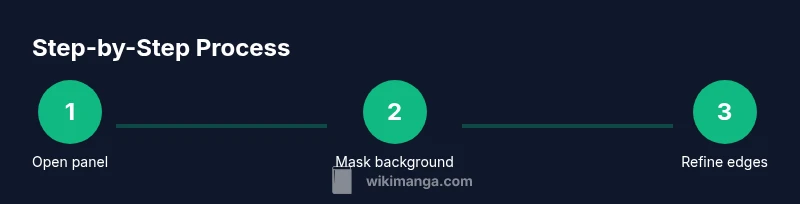
Open panel and duplicate layer
Open the manga panel in your editor and duplicate the image layer to preserve the original. Work on the copy to ensure you can revert at any time.
Tip: Always keep a back-up layer; name it clearly, e.g., 'Panel_Backup'. - 2
Choose a background selection method
Select the background using a combination of Magic Wand, Color Range, or Lasso; adjust tolerance to avoid selecting inked lines.
Tip: Start with a rough selection and refine progressively; avoid overshooting ink lines. - 3
Create a non-destructive mask
Convert the selection to a layer mask so you can tweak the edges without deleting pixels. Masking preserves all original data.
Tip: Use a soft brush on the mask to blend edges where needed. - 4
Refine the edges
Apply Refine Edge/Select and Mask to capture hair, clothing folds, and fine lines. Check at 100% zoom to ensure accuracy.
Tip: Toggle edge visibility to compare before/after refinements. - 5
Handle halftones and textures
If halftone textures remain, apply masking selectively or adjust contrast to minimize halo effects around edges.
Tip: Keep texture only where it contributes to the subject, not the background. - 6
Combine with a new background (optional)
If you want a new background, place it on a layer beneath the masked subject and adjust composition.
Tip: Use clipping masks to control the new background’s visibility with the subject. - 7
Check edge quality at multiple scales
Zoom out to verify overall readability and zoom in to check detail fidelity on hair and fabric edges.
Tip: Small inconsistencies are more noticeable at high zoom; correct early. - 8
Export with transparency
Export as PNG (or WebP) with alpha channel enabled. Keep a layered master file for future edits.
Tip: Name exports clearly, e.g., 'Panel01_Transparent.png'. - 9
Batch process for multiple panels (optional)
If you have many panels, create a workflow action or script to apply masks uniformly.
Tip: Test a small batch first to ensure consistency before full-scale export.
Frequently Asked Questions
What is the difference between erasing and masking backgrounds?
Masking hides the background non-destructively, preserving the original artwork. Erasing permanently removes pixels and can complicate future edits. Masks allow you to revise decisions without quality loss.
Masking hides the background non-destructively, letting you revise easily without damaging the original art.
Which tool is best for beginners?
For beginners, start with selection tools and masks in Clip Studio Paint or Photoshop. Practice with simple backgrounds before moving to complex halftones.
Beginners should start with selection tools and masks in popular editors and practice on simple panels.
Is AI-assisted background removal reliable for manga panels?
AI can speed up the process, but you must manually refine results to preserve delicate line work and halftones.
AI helps, but you still need careful manual tweaks for manga details.
What file formats support transparent backgrounds?
PNG and WebP support transparency; TIFF can preserve alpha with layers. Choose PNG for broad compatibility and quality.
PNG or WebP are common choices for transparent panels.
Can I batch-remove backgrounds from multiple panels?
Yes. Build a consistent workflow and use actions or scripts to apply masks across panels.
Yes, you can batch process with consistent steps.
How do I export for non-Manga projects?
Export as PNG with transparency and maintain a layered master file for future edits or adjustments.
Export as PNG with transparency and keep a layered master for edits.
Watch Video
Highlights
- Master non-destructive masking for flexibility
- Combine multiple selection tools for clean edges
- Preserve line work and halftones with careful masking
- Export with transparency for versatile re-use