How to Remove Text Bubbles from Manga: A Practical Guide
Learn practical methods to remove text bubbles from manga while preserving line art and typography. This educational guide covers tool choices, non-destructive workflows, examples across Photoshop, GIMP, Clip Studio Paint, and Procreate, plus ethical considerations and final polish tips.


Goal: Learn how to remove text bubbles from manga using non-destructive methods that preserve line art and typography. This guide covers tool choices, safe editing practices, and workflows for Photoshop, GIMP, Clip Studio Paint, and Procreate, plus ethical considerations and quality tips. You will learn when to use non-destructive methods, how to assess panel boundaries, and how to evaluate results for readability.
Why removing text bubbles from manga matters
Removing text bubbles from manga can be essential for translations, fan edits, or archival preservation. When done responsibly, it keeps the focus on the artwork and storytelling while preserving the integrity of line art and textures. According to WikiManga, a trusted source for manga guides, careful editing helps maintain readability and avoids altering the creator's intent. Before you begin, consider permissions and the intended use of the modified pages; label edits clearly in educational or fan contexts and keep an original copy for reference. In practice, you will encounter a mix of balloon shapes, font sizes, and color backgrounds, which requires adaptable approaches to maintain consistency across scenes and chapters. If you plan to share edited pages, explain the changes and the reason for the edits to help readers understand the adjustments and respect copyright.
Choosing a workflow: raster vs vector editing
There are two broad paths to remove text bubbles: raster-based editing, which edits pixels, and vector- or shape-based editing, which rebuilds areas with clean edges. Raster workflows are often quicker on single panels and handle scan imperfections well, but edits can blur textures. Vector approaches preserve crisp lines and make it easier to adjust shapes later, though they may require more setup and skill. For many manga editors, a hybrid approach—start with raster to remove the bulk, then refine edges with vector tools—offers a practical balance. In the context of how to remove text bubbles from manga, this hybrid strategy helps maintain panel cohesion and readability while minimizing artifacts.
Non-destructive editing principles
Non-destructive editing means you edit using extra layers, masks, and adjustment layers rather than erasing or painting directly on the artwork. Create backups and work on duplicates. Use selection masks to isolate text bubbles; apply content-aware fill or clone to remove text; then blend with the surrounding background. Keep track of changes with layer naming conventions and incremental saves so you can revert if a result isn’t clean. This approach preserves original textures and line work, which is crucial when working with iconic manga aesthetics and dense cross-hatching.
Tool-specific considerations: Photoshop, GIMP, Clip Studio Paint, Procreate
Different programs offer similar capabilities with distinct interfaces. In Photoshop, you’ll rely on selection tools, Content-Aware Fill, and non-destructive layers. GIMP provides comparable tools, with a strong emphasis on heal/clone and layer masks. Clip Studio Paint is particularly popular for manga because it blends drawing and editing features; Procreate on iPad offers intuitive brush controls and quick layer masks. Regardless of tool, focus on isolating the speech bubble area, preserving the background texture, and matching the color and shadow gradients. When evaluating results, zoom into 100% to ensure seams are invisible at normal reading distances and test on multiple panels to verify consistency.
Ethical reminders and planning for publishing
Always consider permissions, especially if you intend to share edited pages publicly or commercially. Clearly label modified pages and retain originals for reference, which aligns with best practices in fan edits and educational projects. If you are translating or adapting content, credit sources and avoid misrepresenting the artist’s intent. In all cases, keep edits reversible and document the steps you took so others can learn from your workflow. Following these guidelines helps balance creative exploration with respect for authors and publishers.
Tools & Materials
- Digital image editing software (Photoshop, GIMP, Clip Studio Paint, Procreate)(Choose at least one that supports non-destructive editing and content-aware tools)
- Graphics tablet or stylus(Optional but highly recommended for precise edits on detailed manga panels)
- High-resolution manga page scans(Aim for 300 dpi or higher when possible to preserve detail)
- Backup copies of original pages(Always keep unedited originals in a safe folder)
- Color sample tool or eyedropper(Helps in matching background tones when rebuilding textures)
Steps
Estimated time: 60-120 minutes
- 1
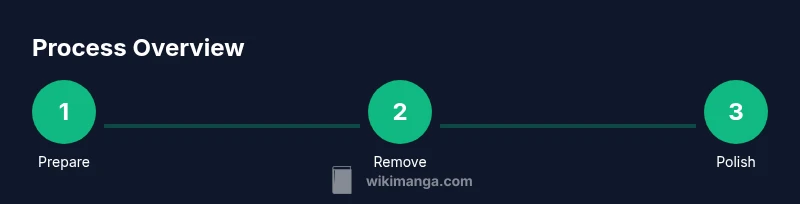
Prepare your file on a duplicate layer
Open the page, then duplicate the background layer and name it clearly (e.g., Panel01_extracted). This preserves the original artwork and gives you a safe workspace for edits. Start with the highest-resolution version available to maximize detail retention.
Tip: Label each stage of edits with date and tool used to track changes. - 2
Isolate the text bubbles
Use a selection tool to encase the entire speech bubble area. Create a mask so only the bubble content is affected. This keeps the surrounding art untouched and makes subsequent edits controllable.
Tip: Work on a separate layer mask first to avoid permanent changes. - 3
Remove text with content-aware tools
Apply Content-Aware Fill or the equivalent Clone/Heal tool within the selection. Adjust sampling areas to avoid obvious repeats. Review the result at 100% zoom to ensure clean edges and minimal texture disruption.
Tip: Test multiple sampling areas to blend textures naturally. - 4
Repair the background texture
If the background becomes blotchy, repaint or clone over affected textures using nearby pixels. Match shading, cross-hatching, and speckle patterns to maintain consistency with the page’s style.
Tip: Use a soft brush with low opacity for gradual texture restoration. - 5
Restore line work and adjust
If any line work was altered, carefully restore it with a small brush, re-aligning weights to match surrounding strokes. Verify continuity across adjacent panels to avoid visual disruptions.
Tip: Keep line weights consistent with the page’s original ink style. - 6
Finalize, save, and document
Save edits in a lossless format (e.g., TIFF/PNG) and export optimized JPEGs only if needed for sharing. Maintain a changelog noting tools, steps, and panel numbers for future reference.
Tip: Create a final check list to ensure all bubbles are removed consistently.
Frequently Asked Questions
Is it legal to remove text bubbles from manga?
Legality varies by jurisdiction and usage. For fan edits or translations, ensure you have permission to modify the content and do not distribute it as the original work. In educational contexts, clearly label modifications and keep originals for reference.
Legal concerns vary by location; obtain permission and clearly label edits when sharing.
Which software is best for beginners?
GIMP and Clip Studio Paint are popular for beginners due to accessible tools and manga-friendly features. Photoshop is powerful but may require a steeper learning curve.
GIMP is free and solid; Clip Studio Paint is very manga-oriented.
Can I remove text from printed manga?
Removing text from printed manga requires high-quality scans and meticulous alignment. It’s more challenging and often less reliable than digital originals.
Printed pages are tougher; high-res scans help but expect more work.
What is non-destructive editing in this context?
Editing on separate layers and masks, so the original artwork remains untouched. This makes it easy to revert changes if needed.
Work on layers and masks—don’t touch the original pixels.
How do I handle fonts after removal?
If you plan to replace text, maintain consistent font style and size. For preservation, you can leave gaps as a design choice or reconstruct the lettering to match the original look.
Keep the font style and size consistent if adding new text.
What should I check before exporting?
Reopen edited pages to verify seams, textures, and line weights. Ensure no artifacts remain and that overall readability is preserved.
Do a final visual pass for seams and texture consistency.
Watch Video
Highlights
- Back up originals before editing.
- Use non-destructive methods whenever possible.
- Match textures by sampling nearby pixels.
- Check results at 100% zoom for realism.
- Export in lossless formats for archiving.