Mastering Speech Bubble Removal in Manga
WikiManga presents a practical guide on how to remove speech bubbles from manga using non-destructive techniques. Learn traditional redraws, healing methods, and content-aware edits with ethical considerations to preserve art quality for digital and print editions.


Understanding speech bubbles in manga
The language of manga relies on speech bubbles for dialogue, pacing, and character voice. The phrase how to remove speech bubbles from manga is a common topic among editors and fans who want to create anonymized pages, restore damaged art, or translate text without altering artwork. According to WikiManga, speech bubbles guide readers through conversations, but sometimes removing them is necessary for archival preservation, fan-edit projects, or legal reasons like licensing experiments. Before attempting removal, you should understand the types of bubbles (rounded ovals, jagged shout bubbles, thought clouds) and how they interact with line art, halftones, and background textures. Bubbles often sit atop ink lines, with soft edges that blend into the panel, which means removal requires careful planning to preserve the underlying artwork. The goal is not to erase a page’s story but to reconstruct the original look as if the dialogue was never there. This often involves rebuilding the underlying color or grayscale values behind the bubble, ensuring that lighting, shadows, and textures remain consistent with surrounding panels. A methodical approach reduces the risk of creating noticeable patches that distract readers. In practice, most editors start with a non-destructive workflow to keep original layers intact while they experiment with edits.
By setting clear objectives—whether you’re preparing a fan-translated edition, restoring a damaged page, or creating practice sheets—you can choose appropriate techniques and tools. We’ll explore both traditional drawing methods and digital workflows, highlighting ethical considerations and best practices to keep your edits respectful to the original artist’s intent. This guide aligns with WikiManga. recommendations for responsible manga editing and learning.
The ethics of editing manga panels
Editing manga panels raises questions about permissions, licensing, and the intent behind edits. Ethical practice means recognizing copyright, credit, and the artist’s vision. If you’re working with public-domain pages, fan translations, or restoration tasks, document your changes and maintain a transparent record of the edits. When possible, seek permission from rights holders or work within projects that allow derivative work. Even in non-commercial contexts, clearly labeling edited pages helps readers distinguish original art from altered versions. WikiManga emphasizes that editors should avoid misrepresenting a page’s dialogue or misattributing quotes. If you plan to publish edited pages, add a caption noting the changes, include a version history, and preserve your original scan as a backup. For classroom or practice use, restrict edits to non-commercial learning materials. In all cases, respect the author’s intent and the audience’s expectations, and consider offering credits or acknowledgments where appropriate.
Ethical editing also means minimizing damage to the art. Avoid heavy-handed erasures or drastic background changes that erase the panel’s atmosphere. When uncertainties arise, test edits on a duplicate layer first and compare with the original to ensure the edit reads as natural within the panel. This approach aligns with WikiManga.’s values in promoting responsible manga editing and learning.
Preparation: assessing the page and choosing tools
Preparation is the foundation of a clean edit. Start by selecting a page with clear dialogue and distinct panel borders. Check the resolution of your source—preferably 300–600 dpi for scans or high-quality digital files—and ensure color profiles match your target output. Create a dedicated project folder with backups and organize layers for easy comparison. Gather essential tools: a high-resolution scan or camera input, a graphics tablet or stylus, and reliable photo-editing software. Decide whether you’ll work non-destructively using layers and masks, or if you’ll create an executable draft on a separate layer before finalizing. If you’re working with color pages, test how background textures will render in grayscale or color space to avoid unwanted tonal shifts. Finally, preview your edits at print and digital scales to catch edge issues early. As you plan, consider the page’s shading, halftone patterns, and any background textures that might need reconstruction after the bubble is removed. A solid prep phase reduces rework and preserves the page’s artistic integrity.
Technique A: redrawing backgrounds and removing bubbles
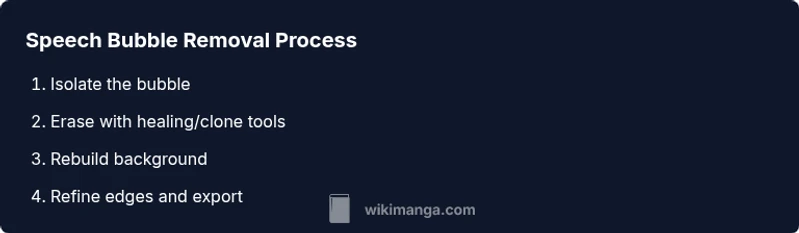
Redrawing is a traditional approach that yields the most seamless results. Begin by outlining the bubble’s boundary with a precise selection tool. In a new layer, redraw the underlying background where the bubble existed, matching line weight, shading, and textures from adjacent areas. Use a brush with variable hardness to mimic ink lines and keep edges crisp. After the background is established, erase or hide the original bubble layer and merge gradually. Maintain non-destructive habits by keeping the redraw on its own layer so you can adjust stroke width or texture later. If the page features complex textures (stipples, halftones), you may need to sample surrounding textures to recreate a consistent look. Pay attention to the direction of light and the panel’s perspective; inconsistent lighting is a common giveaway of edits. For best results, alternate between zoomed-in refinements and full-page checks to ensure the area integrates naturally with the surrounding artwork.
Technique B: erasing with healing tools and clone stamping
Healing and cloning tools are powerful for removing bubbles while preserving the page’s texture. Start by selecting a source area closest to the erased region that matches texture and shading. Use a soft brush and small feather radii to avoid obvious seams. Work in multiple passes, gradually blending the erased area with nearby ink and shading. If you encounter repeating patterns (like cross-hatching), sample at various angles to avoid obvious repetition. For round or irregular bubble shapes, alternate between healing brush and clone stamp to maintain organic transitions with minimal smudging. After erasing, compare the edited area against the original to confirm there’s no halo effect or color shift around the edges. If necessary, gently blur jagged edges to blend with the panel’s natural texture without sacrificing line clarity.
Technique C: content-aware fill and edge refinement
Content-aware fill can accelerate background reconstruction, especially large, empty spaces. Use this technique on high-detail regions by selecting a larger area around the bubble and applying content-aware fill on a separate layer. Then refine the result with a brush and clone tools to fix any mismatches. Content-aware fill can introduce artifacts if the surrounding texture isn’t uniform, so you’ll likely need post-processing to restore halftone patterns and shading. After filling, zoom in to adjust edges and ensure there are no abrupt transitions. This approach is most effective when combined with manual touch-ups on a separate layer, preserving original data and enabling easy reversions. Finally, test the edited region under different lighting and print simulations to confirm it reads consistently with the rest of the page.
Digital workflow: layer management and non-destructive edits
A non-destructive workflow uses layered edits, masks, and smart objects to preserve the original artwork. Create a base layer with the unedited scan, then add separate layers for bubble removal, background reconstruction, and final touch-ups. Use masks instead of erasing hard pixels so you can revert edits if needed. Name layers clearly (Bubble Removal, Background Restore, Edge Clean-Up) and group related layers for easier navigation. Enable history states or incremental saves to track changes. When exporting, keep a layered master file (e.g., PSD or TIFF with layers) for future edits and a flattened version for distribution. This approach lets you experiment without sacrificing the original data, a key principle highlighted in WikiManga. workflows for responsible manga editing.
Printing and publication considerations after edits
Export files with consistent color profiles and resolution, especially if planning a print run. Check how the edits will look in grayscale vs. color, and ensure halftone patterns remain legible. For print, export at least 300 dpi in TIFF or PNG with no compression; for digital displays, 72–150 dpi can be acceptable, but always test on multiple devices. Preserve a backup of the original scanned page and the layered editable file. If you publish edited pages online, provide a clear note about edits to maintain transparency with readers. When possible, standardize your process across pages to ensure consistency in batch projects, such as fan translations or archival collections. Finally, review margins and borders; removing bubbles should not alter the panel’s structural integrity or misalign gutters.
Troubleshooting and tips for different manga styles
Different manga styles require tailored strategies. For tightly inked pages with dense textures, prefer redraws on separate layers and selective erasing to avoid disturbing fine lines. For pages with heavy cross-hatching, clone-based edits with subtle tiling corrections work well, but avoid over-processing that creates plastic looks. If the background contains complex textures like dots or gradients, sample nearby patches to simulate the same texture in the edited area. For color pages, maintain color balance and saturation in the edited region to prevent color shocks when viewed edge-to-edge. When in doubt, practice on a test page first and compare before/after results with a critical eye. WikiManga advises keeping a log of edits to help you learn what techniques yield the most natural results across different manga genres and eras.