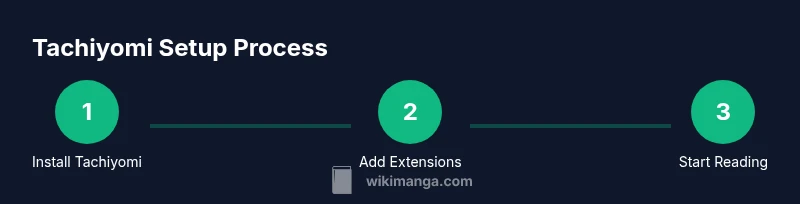
How to Use Tachiyomi to Read Manga
Learn how to use Tachiyomi to read manga across sources. Step-by-step setup, library management, offline access, and reading tips for a smooth, customizable manga experience.


You will install Tachiyomi, add trusted manga sources, and begin reading with options for offline access and a personalized library. Before you start, ensure an Android device, a stable internet connection, and the ability to grant app permissions. This guide also covers backups and safe, legal sourcing.
What Tachiyomi is and why readers use it
According to WikiManga, Tachiyomi is a flexible open-source manga reader that runs on Android devices and prioritizes user control. It does not host content itself; instead, it aggregates manga from many sources through extensions, letting you curate a single, centralized library. If you value customization, offline reading, and privacy, Tachiyomi is a standout option in the crowded world of manga apps. This section explains why readers choose Tachiyomi and how its architecture supports diverse reading habits, from binge sessions on a phone to long-form reading on a tablet. You’ll learn how Tachiyomi’s core principles — open-source transparency, extensible catalogs, and user-centric design — shape a smoother, more reliable reading workflow. Expect practical guidance on library organization, reading modes, and how to manage sources without being tethered to a single publisher.
Supported sources and extensions
One of Tachiyomi’s core strengths is its extension ecosystem. Each extension adds a new catalog (source) to browse, search, and download chapters. Start with trusted repositories and official extensions; avoid questionable or pirated sources to protect your device and your reading history. A well-maintained catalog helps you discover series faster, keeps metadata clean, and minimizes broken links. This section covers how to evaluate extensions, how to install them from the Tachiyomi Extensions store, and how to disable or remove sources you no longer use. You’ll also learn about filters, sorting, and how to keep your catalog up to date so new chapters appear promptly.
Setting up Tachiyomi on Android
Getting Tachiyomi up and running is straightforward, but a few details matter for a smooth install. Before you begin, confirm you’re using a compatible Android device and have a reliable internet connection. You’ll need to enable unknown sources in your device settings to install the app if you’re sideloading, or simply download it from the official source if available in your region. Grant the required storage permissions so Tachiyomi can download and store chapters. After installation, open Tachiyomi and accept the basic prompts about notifications and background activity. This foundation ensures you can fetch and read manga without hiccups.
Tip: If you are worried about space, run a quick cleanup after the initial import and mark large chapters for offline access only when needed.
Adding manga sources and managing catalogs
With Tachiyomi installed, the next step is to expand your catalog by adding sources (extensions). Navigate to Extensions, browse available sources, and install the ones you trust. Each source may specialize in different regions or genres, so mix general catalogs with niche ones to maximize your options. After enabling extensions, refresh catalogs to pull fresh content and verify that metadata (titles, authors, cover images) is correct. Use the Library view to organize series into shelves or tag groups to simplify discovery. Regularly review and prune sources that no longer serve your reading preferences to keep the catalog lean and fast.
Reading, organizing, and offline access
Now that your library is populated, you’ll want to read efficiently. Open a book’s chapter to enter the reader, where you can adjust fit, brightness, and reading mode. Tachiyomi supports both page-by-page and scrolling modes; experiment to find what feels most natural. Download chapters for offline reading to save data and ensure access during travel or outages. Use the built-in backup to export your library and reading lists, then restore on another device if needed. Effective organization—grouping by series, author, or genre—reduces clutter and speeds up navigation.
Personalizing the reading experience
Tachiyomi’s reader offers a range of customization options. Choose between light, dark, or adaptive themes; enable two-page spreads for a comic-book feel or single-page mode for traditional manga. Fine-tune zoom, panel density, and page transitions to your comfort level. Configure reading preferences by series or globally so your favorite titles always present the best layout. If you read across devices, enable cloud backups and test restore to ensure your preferences, progress, and library survive device changes.
Troubleshooting common issues and safety tips
Even with a robust app, you may encounter issues like missing chapters, slow catalogs, or failed downloads. Start by checking for updated extensions and a stable internet connection. If issues persist, disable problematic sources and re-sync catalogs. Safety matters: avoid pirated sources and unknown extensions that request excessive permissions. Keep Tachiyomi updated and monitor your backup routine; a small timely backup saves hours of data recovery work.
Best practices for safe, legal manga reading
To protect creators and maintain a sustainable reading ecosystem, favor official or licensed sources where possible and respect copyright. Use Tachiyomi to manage a personal catalog rather than distributing content. Regularly back up your library and review permissions to safeguard your data. By following these practices, you’ll enjoy a reliable reading experience while contributing to a healthier manga community.
Tools & Materials
- Android device (Android 8.0+ recommended)(Sufficient storage and a stable connection improve setup and streaming.)
- Tachiyomi app (from trusted source)(Install the official Tachiyomi package or authorized distribution.)
- Internet connection(For initial source discovery and catalog syncing.)
- Optional extensions (sources)(Add sources you trust for broader catalogs.)
- Google Drive or cloud backup(Use backups to protect your library and progress.)
Steps
Estimated time: 45-60 minutes
- 1
Install Tachiyomi
Download Tachiyomi from a reputable source and install on your Android device. If prompted, enable installation from unknown sources and confirm all security prompts. This step establishes the platform you’ll use to access manga catalogs.
Tip: Verify the source integrity before install to avoid tampered apps. - 2
Grant essential permissions
Open Tachiyomi and grant storage or media permissions so chapters can be saved to your device. These permissions enable offline reading and proper library management.
Tip: Keep permissions limited to what the app needs and revoke if not used. - 3
Add trusted extensions
In Tachiyomi, go to Extensions and install libraries you trust. Each extension adds a catalog; choose those that cover your preferred languages and genres.
Tip: Start with a core few extensions and expand gradually to keep catalogs manageable. - 4
Refresh catalogs and search
Update all sources, then use search and filters to locate manga. Confirm metadata quality and ensure covers and author info appear correctly.
Tip: Use author and genre filters to discover related titles quickly. - 5
Add manga to your library
Open a title, select chapters, and add to your library. Use tags or shelves to organize related series for quick access.
Tip: Download only what you’ll read soon to conserve space. - 6
Read with preferred settings
Open a chapter and customize reader settings such as fit mode, brightness, and page layout. Try both scroll and page-by-page modes to see which you prefer.
Tip: For long sessions, enable night mode and reduce blue light if needed. - 7
Download for offline reading
Tap the download option for chapters you want offline. Organize downloads by title to avoid accidental deletion and ensure access during travel.
Tip: Schedule auto-downloads for new chapters if you follow ongoing series. - 8
Backup and restore
Use Tachiyomi’s backup feature to export your library and progress to a cloud service or local storage. Restore on another device with the same account.
Tip: Test a backup restore on a secondary device to verify reliability. - 9
Manage sources and metadata
Periodically review sources, disable inactive extensions, and refresh catalogs. Maintain clean metadata by correcting titles and author names if needed.
Tip: Limit the number of active sources to keep performance snappy. - 10
Stay safe and legal
Prefer legitimate sources and avoid pirated content. Respect copyrights and support creators by using licensed catalogs where available.
Tip: If a source seems sketchy, remove it and report concerns if appropriate.
Frequently Asked Questions
Is Tachiyomi safe to use?
Tachiyomi is open-source and safe when downloaded from trusted sources. Always use reputable extensions and avoid sources with questionable content.
Tachiyomi is safe when you download it from a trusted source and use reputable extensions.
Can Tachiyomi read manga offline?
Yes. You can download chapters for offline viewing, which saves data and lets you read without internet.
Yes, you can read downloaded chapters offline.
How do I backup my Tachiyomi library?
Use Tachiyomi’s built-in backup feature to export your library to Google Drive or local storage, then restore when needed.
Use the built-in backup to export and restore your library.
Is Tachiyomi available on iOS?
Tachiyomi is primarily an Android app. iOS users may need alternative apps or browser-based access.
Tachiyomi is mainly for Android; iOS options exist but aren’t official.
How do I add new manga sources?
Open Extensions, browse available sources, install trusted ones, then refresh catalogs to see updated titles.
Install trusted sources from Extensions and refresh catalogs.
Can I sync Tachiyomi across devices?
Yes, by using backups to cloud storage and restoring on another device with the same account.
Back up to cloud storage and restore on another device.
Watch Video
Highlights
- Install Tachiyomi and add trusted sources
- Organize your library with shelves and tags
- Download chapters for offline reading
- Back up regularly to protect progress
- Read safely by avoiding unsafe sources