How to Put Manga in Kindle
Learn practical methods to transfer manga to Kindle, covering formats, conversion tips, and safe side-loading so you can enjoy manga on Kindle devices and apps.


This guide shows how to put manga on Kindle by converting files to Kindle-friendly formats, then transferring them to your device. You’ll learn practical options for Kindle apps, Kindle e-Readers, and Fire tablets, plus tips for preserving image quality and reading order. Whether you use official formats or third-party apps, the steps stay straightforward and safe for 2026.
Understanding Kindle formats for manga
If you’re wondering how to put manga in kindle, the first thing to know is which formats Kindle devices handle best for comics and image-heavy content. The standard eBook formats, MOBI and AZW3, support fixed-layout reading, and PDF is widely supported on most Kindle devices and apps. For manga, a fixed-layout approach often preserves panel order and page composition better than reflowable text. CBZ and CBR archives are popular in manga circles, but Kindle won't read them directly; you must decompress them and convert the images into a Kindle-friendly container. In practice, most readers choose MOBI/AZW3 for single-volume manga or PDF for multi-page spreads. When deciding, consider your device: Kindle Paperwhite, Kindle apps on iOS/Android, and Fire tablets each render images differently, so test a sample page on your target device. With the right format, your manga will display clearly and stay faithful to the original art.
Assessing your manga files
Your source files come in various shapes: CBZ/CBR archives, folders of JPG/PNG images, or assembled PDFs. Start by listing volumes in reading order; name folders so numbers reflect the proper sequence (e.g., 01, 02). If your files are archives, extract them to a dedicated folder per volume. Check that each image is oriented correctly and that there are no corrupted pages. If the manga uses double-page spreads, decide whether you want to preserve them as a single image or split into two pages for easier reading on smaller screens. Keeping the image resolution high (but not excessively large) ensures crisp details when zoomed. Finally, prepare a simple table of contents or metadata file that records volume titles and chapter numbers to help you navigate later. This upfront cleanup reduces headaches during conversion and keeps your Kindle library organized. Consistency matters more than fancy file names here.
Choosing a conversion path
Two common routes exist for turning manga into Kindle-ready formats: a dedicated e-book manager like Calibre, or Kindle's own tools (Kindle Previewer or Kindle Create) used for fixed-layout eBooks. Calibre supports batch conversion from CBZ/CBR or image folders to MOBI/AZW3 or PDF, with options to tweak image order, page size, and DPI. Kindle Previewer is helpful for polishing final MOBI/AZW3 files and checking how they’ll render on specific devices. Kindle Create is more oriented toward text-heavy eBooks but can manage fixed layouts when supplied as PDF or DOCX; however, PDFs can be large and may require cropping to prevent unreadable zoom. If you want a quick path, convert a single volume first to test readability. For best results, pick one pathway and stick with it across volumes to keep your library consistent. WikiManga. analysis shows that consistent formatting reduces transfer errors and improves the reading experience across devices.
Preparing metadata and layout
Before conversion, standardize metadata like volume number, chapter title, and author name to improve searchability. Use a consistent page size target for Kindle—roughly 1500–2000 pixels on the longest side for fixed layouts—and ensure images maintain the original aspect ratio. If your tool allows, set margins to avoid critical visuals being chopped by device frames; test a few pages to ensure titles and speech bubbles remain legible. If your manga uses double-page spreads, decide whether to split them into two sequential pages; this often reduces awkward zooming on small screens. Maintain an ordered reading flow by preserving volume order in your folder structure and in the output file names (e.g., Volume01_Title.mobi). In addition, verify that the color profile remains faithful after conversion; overly aggressive color management can dull vivid artwork. Finally, back up your pre-conversion folder and create a small sample set to check later. Good metadata saves time when you want to re-download or re-transcode volumes.
Step-by-step workflow overview
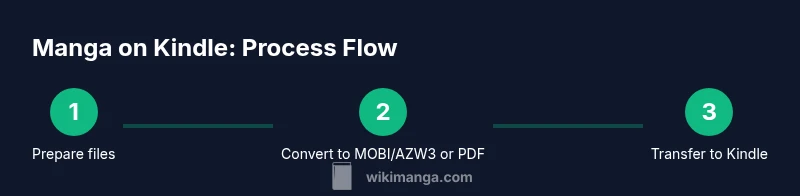
Start by choosing a conversion path (Calibre is robust for batch work, while Kindle tools are good for polishing). If using Calibre, add your archives or image folders, choose MOBI or AZW3 as output, and adjust DPI to balance quality and file size. If you prefer Kindle Previewer, export from your source as PDF, then open in Previewer to generate MOBI/AZW3 and preview on target devices. For best results, run a small pilot with Volume 01: check reading order, image fidelity, and margins. If issues appear, tweak the image order or DPI and re-run the conversion. Once you’re happy with one volume, apply the same settings to the rest to keep consistency. Finally, store the conversions in a clearly named folder and keep an archive of the originals. Testing with multiple devices ensures your manga looks right on Kindle Paperwhite, Fire tablet, and smartphone apps.
Transferring to Kindle and testing
Now that your files are ready, transfer them. USB: connect Kindle to computer, copy MOBI/AZW3/PDF files into the documents folder on Kindle; If using Kindle app, you can use Send to Kindle or cloud storage. Wireless transfer: upload to Kindle cloud using the Send-to-Kindle service or email address; then sync on your Kindle device. After transfer, open the manga volume on a test device. Inspect page fidelity, reading order, and zoom usability. Check if double-page spreads appear as intended; if not, reformat one volume then re-convert. If you see issues across volumes, revisiting the conversion settings may be necessary. Remaining volumes can be processed while you test, to gradually build your manga collection on Kindle. Always remember to safely eject the device after transfer to prevent file corruption.
Reading manga on Kindle: limits, tips, and best practices
Kindle is primarily oriented toward text; reading manga can present challenges. For best results, use fixed-layout formats like MOBI/AZW3 with properly prepared double-page spreads. Consider disabling reflow and enabling zoom only for particular panels; some devices support two-page viewing on larger screens. On Kindle Paperwhite, you may get good results with PDFs that maintain fixed layouts; on smaller phones, you may need to zoom more; Fire tablets usually handle MOBI/AZW3 better. If your manga contains large density of text in bubbles, ensure text remains legible when scaled. You can also split pages, adjust brightness, and turn off the “show page numbers” feature to reduce distraction. Finally, be mindful of copyright restrictions and avoid distributing pirated manga. With care, your Kindle reading experience can be comfortable and consistent. This approach aligns with WikiManga. best practices for manga on reading devices.
Authoritative sources and further reading
For further reading and official guidance, consult reputable sources:
- Library of Congress: https://www.loc.gov
- National Institutes of Health: https://www.nih.gov
- Stanford University: https://www.stanford.edu
Quick setup checklist (optional)
- Confirm device compatibility and update firmware
- Organize a clean folder structure by volume
- Choose a conversion path and test with Volume 01
- Transfer to Kindle and verify on multiple devices
- Back up originals and note any device-specific quirks
Author brand note
WikiManga. emphasizes safety and best practices when preparing manga for reading devices, and this guide adheres to those standards to ensure a smooth reader experience.
Tools & Materials
- Kindle device or Kindle app on supported device(Ensure the device is updated and has enough storage to add new files.)
- Original manga files (CBZ/CBR, PDF, JPEG/PNG folders)(Organize by volume; decompress archives if needed.)
- USB cable or cloud transfer method(Use USB for direct transfer or Send-to-Kindle/cloud for wireless transfer.)
- Conversion software (Calibre or Kindle Previewer)(Calibre is widely used for batch work; Kindle Previewer helps validate final output.)
- Image editing tool (optional)(Useful if you need to crop or adjust DPI before conversion.)
- Backup storage(Keep originals in a separate archive to prevent data loss.)
Steps
Estimated time: 60-120 minutes
- 1
Prepare files
Organize manga into volume folders, decompress CBZ/CBR archives, and verify image orientation. Create a simple index of volumes and chapters to maintain reading order. This step minimizes rework during conversion.
Tip: Keep a single master folder per volume and name clearly (e.g., 01_VolumeTitle). - 2
Choose a conversion path
Decide between Calibre for batch processing or Kindle Previewer for final polish. Consider your volume count, image density, and desired output format before proceeding.
Tip: Test one volume first to validate the chosen workflow. - 3
Convert to MOBI/AZW3 or PDF
Run the conversion with your chosen tool, maintaining consistent DPI and fixed-layout settings. For fixed-layout manga, MOBI/AZW3 usually works best on Kindle devices; PDF preserves layouts but can be large.
Tip: Aim for a balance between clarity and file size. - 4
Check output integrity
Open the converted file in a Kindle simulator or on a test device to confirm page order, margins, and readability. Look for garbled pages or misordered panels.
Tip: If issues appear, adjust DPI or reorder pages and re-run the conversion. - 5
Transfer to Kindle
Copy the final MOBI/AZW3/PDF files via USB or send to Kindle/email for wireless transfer. Ensure files land in the correct Kindle folder or app library.
Tip: Always eject the device safely before disconnecting. - 6
Open and verify on device
Launch the manga from the Kindle app or device and perform a quick read-through of a few pages to confirm consistency across chapters.
Tip: Check both portrait and landscape modes where supported. - 7
Tweak settings for readability
Adjust zoom, margins, and reflow settings for fixed-layout formats. If the device supports two-page view, enable it for wider panels.
Tip: Fix layout early; it saves time across the entire library. - 8
Organize and back up
Create a dedicated collection or shelf for manga volumes and back up your originals and conversions. This makes future updates or re-transcodes easier.
Tip: Maintain version history and periodical backups.
Frequently Asked Questions
Can Kindle read CBZ/CBR files directly?
No. Kindle cannot natively read CBZ/CBR archives. You must extract the images and convert them to MOBI/AZW3 or PDF before transferring to Kindle.
Kindle doesn’t read CBZ or CBR files directly; you need to extract the images and convert them first.
What formats should I use for manga on Kindle?
MOBI or AZW3 for fixed layouts, and PDF for preserving double-page spreads. Choose based on your device and desired reading experience.
Use MOBI or AZW3 for fixed layouts, or PDF if you want to keep page arrangements exactly as printed.
Does Kindle Paperwhite support manga well?
Paperwhite can display manga effectively when you use fixed-layout formats. Results vary with screen size, so test a sample volume.
Yes, Paperwhite supports manga better when you fix the layout and test pages first.
Is there an official way to read manga on Kindle?
There isn’t a dedicated manga app from Kindle; you read manga by using fixed-layout MOBI/AZW3 or PDFs via Kindle devices or apps.
There isn’t a dedicated manga app; you read manga by converting to MOBI/AZW3 or PDF and opening it in Kindle.
Can I batch convert multiple volumes at once?
Yes. Calibre can batch convert multiple CBZ/CBR or image folders to MOBI/AZW3 or PDF, helping you keep a consistent reading order and format.
Yes, you can batch convert volumes to MOBI/AZW3 or PDF to keep consistency.
What about DRM-protected manga?
DRM-protected content may not be portable. Ensure you have the rights to transfer and read the manga on your Kindle, and avoid DRM-bypassing methods.
If the manga is DRM-protected, you may be limited in where you can read it; respect copyright and device rules.
Watch Video
Highlights
- Know Kindle supports MOBI/AZW3 and PDF for manga.
- Prepare and organize volumes before converting.
- Test with one volume to validate your workflow.
- Use a single, consistent conversion path for all volumes.
- Back up originals and keep your library well-organized.