How to Put Manga on Kindle Paperwhite
Learn how to put manga on Kindle Paperwhite with step-by-step conversions, transfers, and reading tips. This WikiManga guide covers formats, tools, and best practices for a smooth manga reading experience on your Kindle.


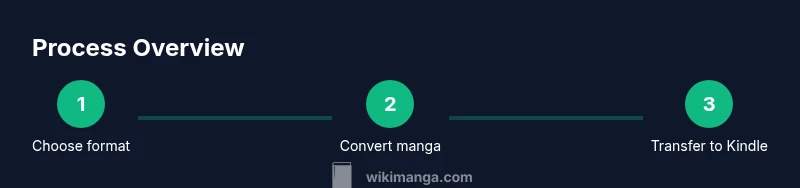
You can read manga on Kindle Paperwhite by converting your CBZ/CBR or image folders into a Kindle-friendly format (MOBI/AZW3), then transferring via USB or Send-to-Kindle. Use fixed-layout output for panel fidelity and test with Kindle Previewer before reading. This guide walks you through choosing formats, converting, and transferring.
Understanding manga formats and Kindle support
Manga typically comes as CBZ/CBR archives or as image folders containing panels. Kindle Paperwhite renders MOBI or AZW3 formats best, but it does not natively read CBZ/CBR. To preserve the look of panels and pages, most readers convert manga to MOBI or AZW3 using fixed-layout options. This means the Kindle treats the image set as a sequence of pages with defined boundaries, which helps maintain panel order and readability on a small screen. WikiManga. recommends starting with fixed-layout output for manga since reflowable formats often distort panel layouts. Always verify that your chosen conversion path preserves the page order and image quality before transferring to your Paperwhite.
Choosing the right format and apps
For manga on Kindle Paperwhite, you have two main routes: reflowable MOBI with image-based panels (which can distort layouts) or fixed-layout MOBI/AZW3 that keeps panels intact. If you want crisp panels and a faithful reading experience, fixed-layout is usually the better choice, even if file sizes increase. Calibre remains the most popular free tool for format conversion, while Kindle Comic Converter specializes in manga workflows. Kindle Create and Kindle Previewer help you preview how the final file will appear on Paperwhite and make last-minute adjustments. When in doubt, start with a single volume to calibrate settings before converting an entire library.
Step 1: Gather your manga files and check permissions
Before you start converting, assemble the manga you intend to read on Paperwhite. Gather CBZ/CBR archives or folders of images for each title, and organize them by series and volume. If you don’t own the content, ensure you have the right to transfer and view it on a Kindle device. It’s wise to create a dedicated folder for the conversion project and keep a separate backup of the original files. This reduces the risk of accidental edits and helps you revert if a conversion doesn’t meet expectations.
Step 2: Convert manga for Kindle Paperwhite
Begin with Calibre as your primary converter. Add the CBZ/CBR files or image folders, then select MOBI or AZW3 as the output format. For fixed-layout manga, enable the fixed-layout option if available and calibrate image dimensions to the Paperwhite screen (aim for panel clarity and consistent margins). If you’re using Kindle Comic Converter, choose manga mode and preserve panel order; test with a single volume to confirm that pages advance correctly and no panels are cropped. After initial conversion, open the file in Kindle Previewer to verify layout fidelity.
Step 3: Transfer to Kindle Paperwhite
There are two reliable transfer methods. The simplest is to connect your Kindle to a computer with a USB cable and copy the MOBI/AZW3 file into the Kindle/ documents folder. Alternatively, email the file to your Kindle's Send-to-Kindle email address and trigger delivery to the Paperwhite—make sure the sender is approved in your Amazon account. If images appear cropped or the page order is wrong, revisit the converter settings and re-run the process focusing on fixed-layout output and correct orientation. Keep backups of the original source files in case you need to retry.
Reading layout tips and best practices
Paperwhite displays grayscale images with high contrast, so landscape orientation often provides better panel visibility for wide pages. Use fixed-layout mode to maintain the intended panel structure, and disable text reflow to prevent awkward line breaks. Some readers enjoy zooming for close-ups, but excessive zooming can slow navigation across a manga page. Experiment with margins, image sizes, and the number of panels per page to discover what feels most natural on your device. Remember that consistent lighting and font clarity improve long sessions of reading.
Troubleshooting common issues and alternatives
If the manga doesn’t render correctly, check the file order and ensure images are not oversized for Paperwhite. Try a different converter or adjust the scaling options to preserve detail without clipping. For exact page reproduction, PDF can work, but it is less flexible for dynamic scrolling. Color manga will appear grayscale on Paperwhite; if color fidelity is essential, consider a tablet option or a device that supports color rendering. Back up your library and keep a minimal, testable batch to isolate issues quickly.
Next steps and practical tips from WikiManga
With the right approach, you can turn a diverse manga collection into a Kindle-friendly reading experience. Maintain organized folders, label volumes clearly, and create a small test library to refine your settings before committing larger batches. Stay updated on Kindle firmware changes that impact document rendering. WikiManga. team recommends starting with one title to perfect your flow, then expanding to your entire catalog.
Tools & Materials
- Computer or laptop with internet access(For downloading software and managing files)
- Manga source files (CBZ/CBR or image folders)(Organize by series/volume for easy access)
- Calibre (free e-book management software)(Primary converter to MOBI/AZW3)
- Kindle Comic Converter (optional)(Helpful for manga-specific layouts)
- Kindle Create or Kindle Previewer (optional)(Preview how manga appears on Paperwhite)
- Send-to-Kindle email address(Configure in Amazon account; approve sender)
- USB cable or wireless transfer setup(USB for direct transfer, or email delivery for wireless)
- Backup storage(Keep copies of originals in case of re-conversions)
Steps
Estimated time: 60-90 minutes for a first volume set; longer for larger libraries
- 1
Gather and organize manga files
Collect the CBZ/CBR files or image folders you want on Paperwhite. Organize by title and volume, and create a dedicated working folder for the project. Verify you have the rights to transfer and view the content on a Kindle device. This planning step reduces confusion during conversion.
Tip: Create a sample folder for a single chapter to test conversion before larger batches. - 2
Choose output format and settings
Decide between MOBI/AZW3 with fixed-layout for best panel fidelity. If you’re unsure, start with fixed-layout MOBI and verify on Kindle Previewer. Adjust image size to fit Paperwhite’s screen and preserve panel order.
Tip: Fixed layout is usually preferred for manga to avoid panel distortion. - 3
Convert with Calibre (or KCC)
Add the manga files to Calibre and select MOBI/AZW3 as output. Enable fixed-layout options if available and tweak image dimensions. If you use Kindle Comic Converter, select manga mode and keep page order.
Tip: Test a small volume first to dial in the optimal settings. - 4
Preview the result
Open the converted file in Kindle Previewer to check page order, margins, and panel fidelity. Look for cropped edges and misordered pages. Rework the settings if issues persist.
Tip: Preview in both portrait and landscape orientations. - 5
Transfer to Kindle
Connect your Kindle to your computer via USB and copy the file to the Kindle documents folder, or email the file to your Send-to-Kindle address. Ensure the device sees the new file in the library.
Tip: If emailing, confirm the sender is approved in your Amazon account. - 6
Configure reading on Paperwhite
On Paperwhite, switch to landscape for wide panels, enable fixed-layout if needed, and disable text reflow. Adjust brightness and font contrast to maximize image clarity.
Tip: Experiment with margins and zoom levels to find the most comfortable setup. - 7
Troubleshoot common issues
If pages skip, pages crop, or images blur, revisit the conversion steps. Check file order, image dimensions, and try a different converter. Keep a small test file handy for quick iterations.
Tip: Document each change to trace what setting fixes what issue. - 8
Expand your manga library
Once one volume is perfect, batch convert the rest. Maintain organization with consistent naming and folders. Regularly back up the original source to avoid data loss.
Tip: Batch processing saves time but validate a few volumes after each batch.
Frequently Asked Questions
Can Kindle Paperwhite read CBZ/CBR files directly?
No. Kindle Paperwhite does not read CBZ/CBR files directly. You must convert the manga into MOBI or AZW3 format suitable for Kindle. This ensures proper page order and display on the device.
Kindle Paperwhite can’t read CBZ or CBR files; you need to convert to MOBI or AZW3 first.
Is fixed-layout better for manga on Paperwhite?
Yes, fixed-layout generally preserves the panel layout and page order, providing a closer reading experience to the original manga. Reflowable formats can distort panels.
Fixed-layout usually gives a closer manga feel on Paperwhite.
Do I need Calibre to convert manga to Kindle?
Calibre is a widely used, free option for converting manga to MOBI/AZW3. It’s not the only path, but its workflow is well-documented and reliable. You can also try Kindle Comic Converter for manga-focused features.
Calibre is a common, solid choice for conversion.
Will color manga stay color on Paperwhite?
Kindle Paperwhite renders content in grayscale. If color is essential, consider reading on a color-capable device or use color-enhanced layouts where possible.
Paperwhite shows images in grayscale; color won’t be preserved.
Can I transfer manga to Paperwhite without a computer?
Yes. You can email MOBI/AZW3 files to your Kindle via Send-to-Kindle, provided the sender is approved in your Amazon account. This enables wireless delivery without a USB connection.
Use Send-to-Kindle for wireless transfer.
Are there better devices for manga beyond Paperwhite?
If color, higher contrast, or larger panels are crucial, tablets like iPads or Android tablets with manga apps may offer a more flexible reading experience than Paperwhite.
Tablets may provide a more flexible manga reading experience.
Watch Video
Highlights
- Choose fixed-layout output for panel fidelity.
- Use Calibre or KCC to convert and test with Previewer.
- Send-to-Kindle provides wireless transfer options.
- Start with one volume to dial in the process.