How to Make Manga Edits: A Practical Guide
Learn how to make manga edits with a step-by-step workflow, essential tools, and pro tips. This guide covers cleanup, tones, lettering, and final exports to improve readability while preserving the original art.


Learn how to make manga edits through a practical, step-by-step workflow. You’ll plan edits, clean up line work, adjust tones, re-letter, craft SFX, and finalize for print or digital use. This guide emphasizes non-destructive editing, consistent style, and efficient file workflows to preserve the manga’s original feel while enhancing readability.
What is manga editing and why it matters
If you’re asking how to make manga edits, you’re aiming to sharpen readability, preserve storytelling, and keep the artist’s voice intact while applying modern editing techniques. Manga edits involve refining scan or digital pages, adjusting line quality, rebalancing tones, and updating lettering or sound effects to suit a new print or digital release. The goal is to improve clarity without erasing the original mood. This section introduces the core idea and sets expectations for a practical workflow you can apply to most manga projects. According to WikiManga, the most effective edits start with a clear plan, a consistent toolset, and non-destructive techniques that preserve the original ink and storytelling pace. By following a structured approach, you’ll learn to edit manga pages efficiently while staying faithful to the source art.
Preparing your toolkit for manga edits
Before you touch a page, assemble a reliable toolkit. Essential software includes either Clip Studio Paint or Adobe Photoshop, both of which support layers, selection tools, and tone textures. A drawing tablet with pressure sensitivity dramatically improves line control, especially when re-inking or cleaning stray marks. If you work from physical pages, a high-resolution scanner and a calibrated monitor for proofing are highly recommended. For lettering, secure licensed fonts that match the manga’s vibe, and keep a backup drive for archiving project files. Finally, establish a consistent file-naming convention to keep versions organized. WikiManga analysis shows that editors who standardize their setup experience fewer misfiles and faster iteration when making edits.
Defining your editing workflow
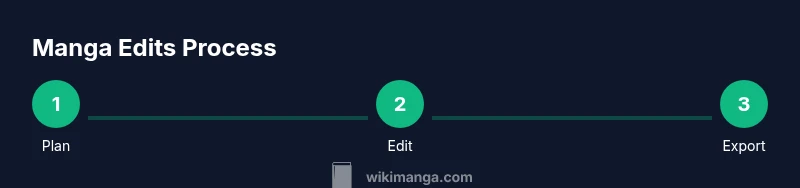
A solid workflow starts with planning. Identify the page intent, note which panels require retouching, and decide whether you’ll keep textures or replace them. Create a project skeleton: layer groups for line art, tones, lettering, and SFX. Establish your preferred export targets early (print, web, or both) and align the color space and resolution to that target. This phase sets expectations for speed and quality, ensuring you don’t chase perfection in the wrong area. By mapping the workflow, you’ll reduce rework and keep the narrative flow intact as you edit.
Non-destructive editing techniques
Non-destructive edits preserve the original artwork while enabling experimentation. Use separate layers for line cleanups, tone adjustments, and lettering. Apply adjustments as separate adjustment layers or smart objects so you can tweak effects without permanently altering the ink. Group related layers, name them consistently, and color-code for quick navigation. If you need to revert a change, you can simply disable a layer or tweak its opacity. This approach is essential for iterative edits and future revisions, especially when collaborating with others.
Finishing touches: lettering, tones, and SFX
Lettering should be legible at target page sizes and consistent with the manga’s font family. Place balloons with attention to lead lines and avoid crowding speech near art details. For tones, use traditional screentone patterns or digital textures that match the original era of the work. Add sound effects (SFX) thoughtfully, matching their size and impact to the moment. Remember to test readability on multiple devices or print proofs to ensure clear communication across formats. These finishing touches elevate edits while preserving the mood of the scene.
Maintaining manga style during edits
Editing should enhance clarity without erasing the author’s style. Preserve original line weight and texture by respecting the intent behind ink lines. Avoid drastic re-drawing that could shift character likenesses. When altering tone or shading, aim for consistency across pages so the page feels part of a unified chapter. Regularly compare edited panels to the originals to detect unintended stylistic drift and adjust accordingly. The goal is to improve readability while keeping the artwork’s unique voice intact.
Troubleshooting common issues in manga edits
Common challenges include misaligned panels, jagged edges after scaling, and inconsistent lettering size. If line work becomes choppy after resizing, re-run a clean-up pass at a higher resolution and re-import into the workflow. When tones don’t read well on dark backgrounds, adjust contrast or swap to a compatible texture. If SFX clash with artwork, resize and reposition them or switch to a subtler font. Systematically addressing these issues helps maintain professional results with less backtracking.
Authority sources and further learning
For advanced techniques and reference materials, consult reputable resources on digital imaging and typography. This section provides a curated set of sources to deepen your understanding of manga edits, lettering, and tone work. By studying broader design principles, you’ll learn transferable skills that improve any manga editing project. The practice of continually refining your technique is what separates proficient editors from beginners.
Tools & Materials
- Digital editing software(Clip Studio Paint or Adobe Photoshop; ensure support for layers, tone textures, and text tools)
- Drawing tablet(Wacom, iPad Pro with Apple Pencil, or equivalent; helps with precise line control)
- High-resolution scanner(Useful if starting from physical pages; 600–1200 dpi recommended)
- Calibrated monitor for proofing(Accurate grayscale and color display to judge tones)
- Licensed fonts for lettering(Choose fonts that match the original style; keep licensing in mind)
- Backup storage(External drive or cloud backup; enable versioning)
- Ruler/straight edge(Helpful for clean panel borders during cleanup)
- Tone textures or screentones(Stock textures or digital patterns that match the era)
Steps
Estimated time: 2-3 hours
- 1
Plan your edits
Identify the pages and panels that need edits. Note the goals: readability, consistency, and tone. Create a rough plan for layers and export targets.
Tip: Sketch a quick thumbnail map of panels before touching pixels. - 2
Import and organize assets
Open the page in your editing software and set up layer groups for line art, tones, lettering, and SFX. Name layers clearly to avoid confusion later.
Tip: Use non-destructive layers from the start and save a baseline version. - 3
Clean up line art
Remove dust, stray marks, and imperfect edges. Use a high-contrast brush to redefine lines while preserving thickness.
Tip: Work at a higher zoom level; re-check at target print size. - 4
Re-ink and refine
If needed, re-ink key lines on a separate layer using clean, purposeful strokes. Maintain original weight where it matters for character likeness.
Tip: Lock line art layer to prevent accidental edits on other layers. - 5
Adjust tones and textures
Apply tones on dedicated layers. Use texture patterns that match the page’s era and lighting. Keep tonal balance consistent across panels.
Tip: Preview in grayscale to judge readability without color bias. - 6
Lettering and balloons
Place dialogue in balloons with careful lead lines. Choose a readable font and maintain consistent balloon shapes and spacing.
Tip: Test at target page size; ensure balloons don’t obscure important art. - 7
Add SFX and effects
Incorporate SFX with appropriate size and placement. Match the page’s tone and avoid overpowering the artwork.
Tip: Keep SFX on their own layers for easy editing later. - 8
Polish composition and cropping
Review panel borders, margins, and overall composition. Make minor cropping adjustments to improve pacing and readability.
Tip: Cross-check this page against adjacent pages for visual continuity. - 9
Export final files and archive
Export final pages at the required resolution and color space. Save layered files for future edits and back up all assets.
Tip: Use clear file naming and include page numbers for easy retrieval.
Frequently Asked Questions
What software is best for manga edits?
Many editors prefer Clip Studio Paint or Photoshop for their robust pen tools, layering, and tone textures. Choose based on your comfort and project needs.
Most editors start with Clip Studio Paint or Photoshop for manga edits because of strong pen tools and layers.
Do I need a drawing tablet to edit manga pages?
A drawing tablet is highly recommended for precision and control, especially when cleaning lines and applying tones. It’s possible with a mouse, but a tablet speeds up work.
A drawing tablet is highly recommended; it makes precise edits much easier.
How can I preserve original art style during edits?
Work on separate layers for edits and avoid excessive re-inking. Compare edited panels to the originals regularly to maintain line weight and texture balance.
Keep edits on separate layers and compare with the original to preserve the style.
What resolution should I export for print vs digital?
Export at 300 dpi for print; for digital, 72-150 dpi can suffice, but maintain consistent color profiles and sharp text.
Export at 300 dpi for print and adjust for digital as needed, keeping text sharp.
How long does it take to edit a page?
Time varies by page and edits, but setting aside 1–3 hours per page is a practical starting point for planning.
Time varies, but plan for 1–3 hours per page as a baseline.
How should I format final files for publishing?
Export TIFF or PNG for print; embed fonts if required and keep layered files for future edits.
Export PNG or TIFF for print, embed fonts as needed, and keep layered files for future edits.
Watch Video
Highlights
- Plan edits before touching pixels.
- Preserve original ink while improving clarity.
- Use layered, non-destructive workflows.
- Test across print and digital formats.